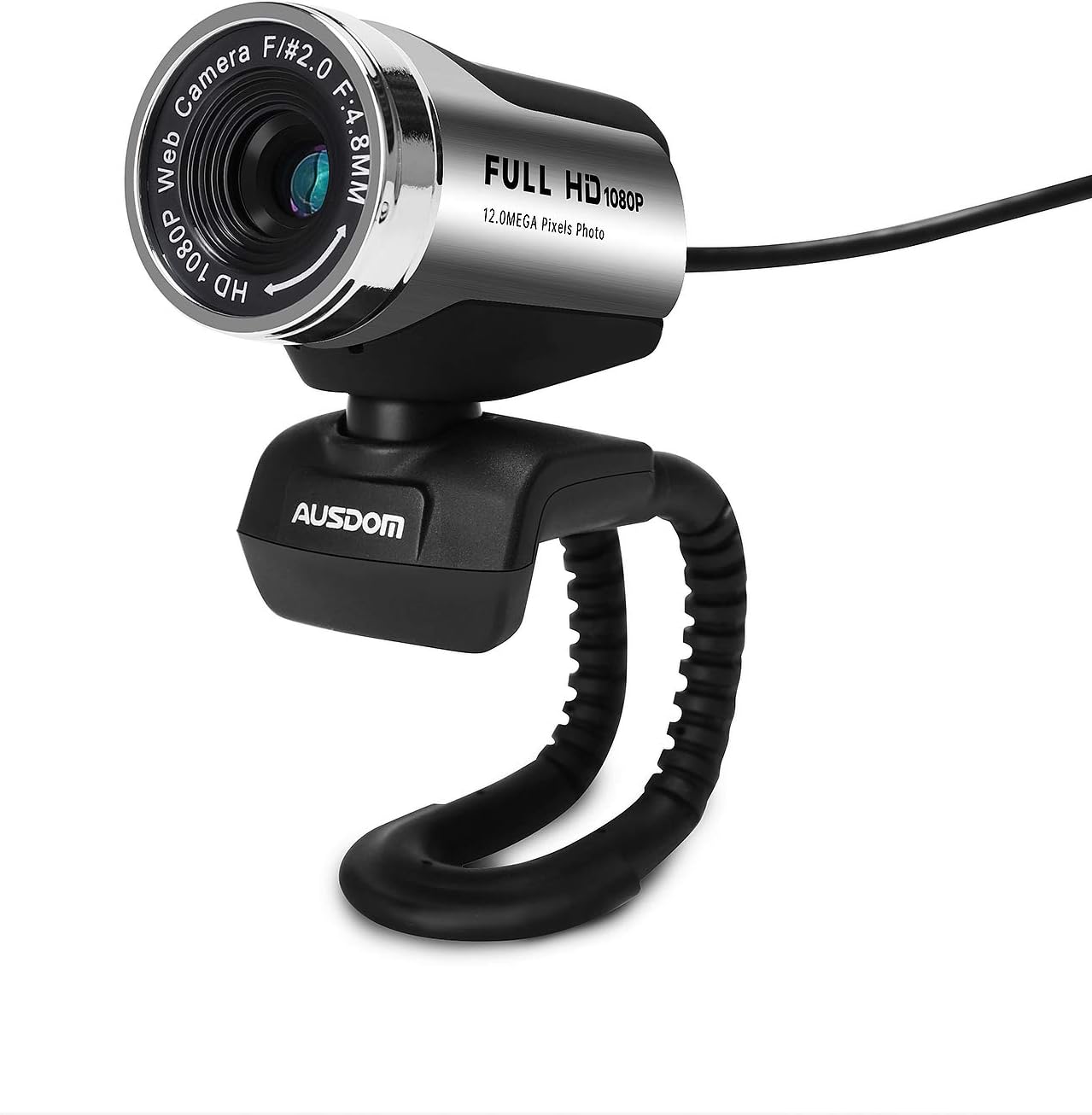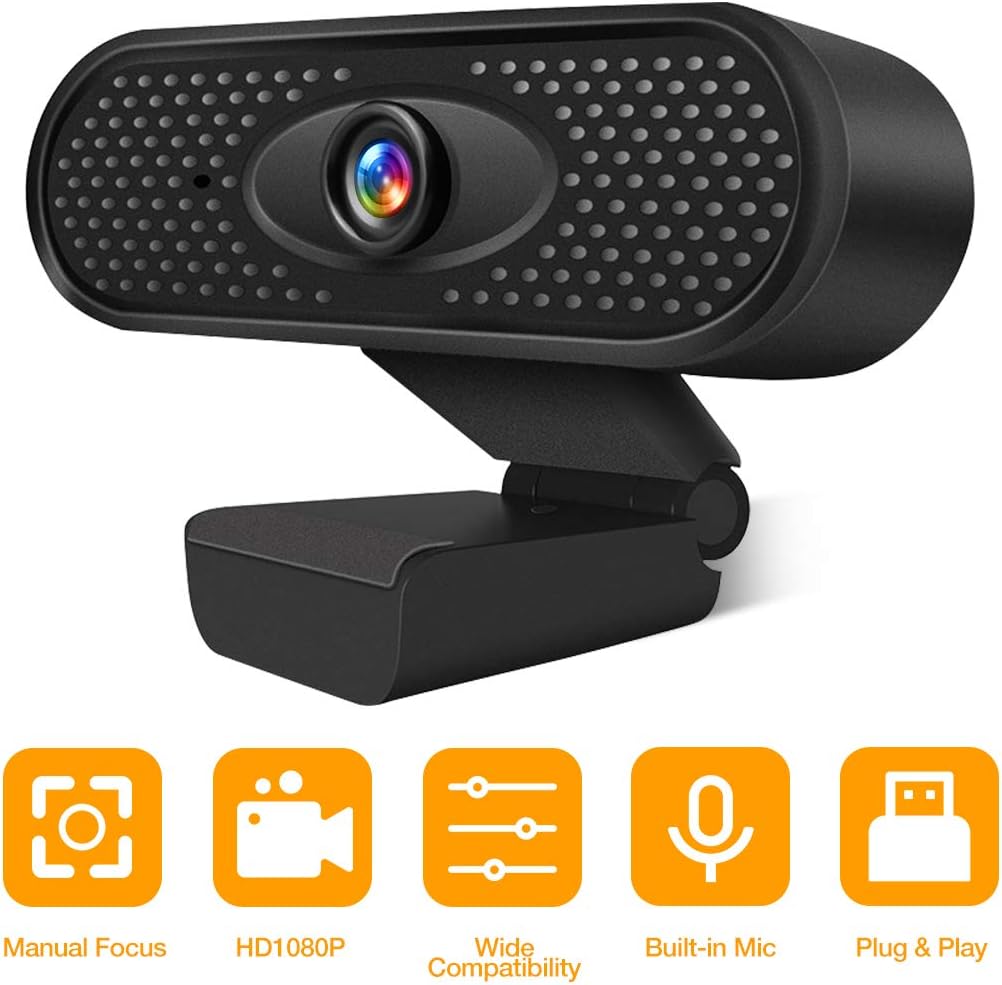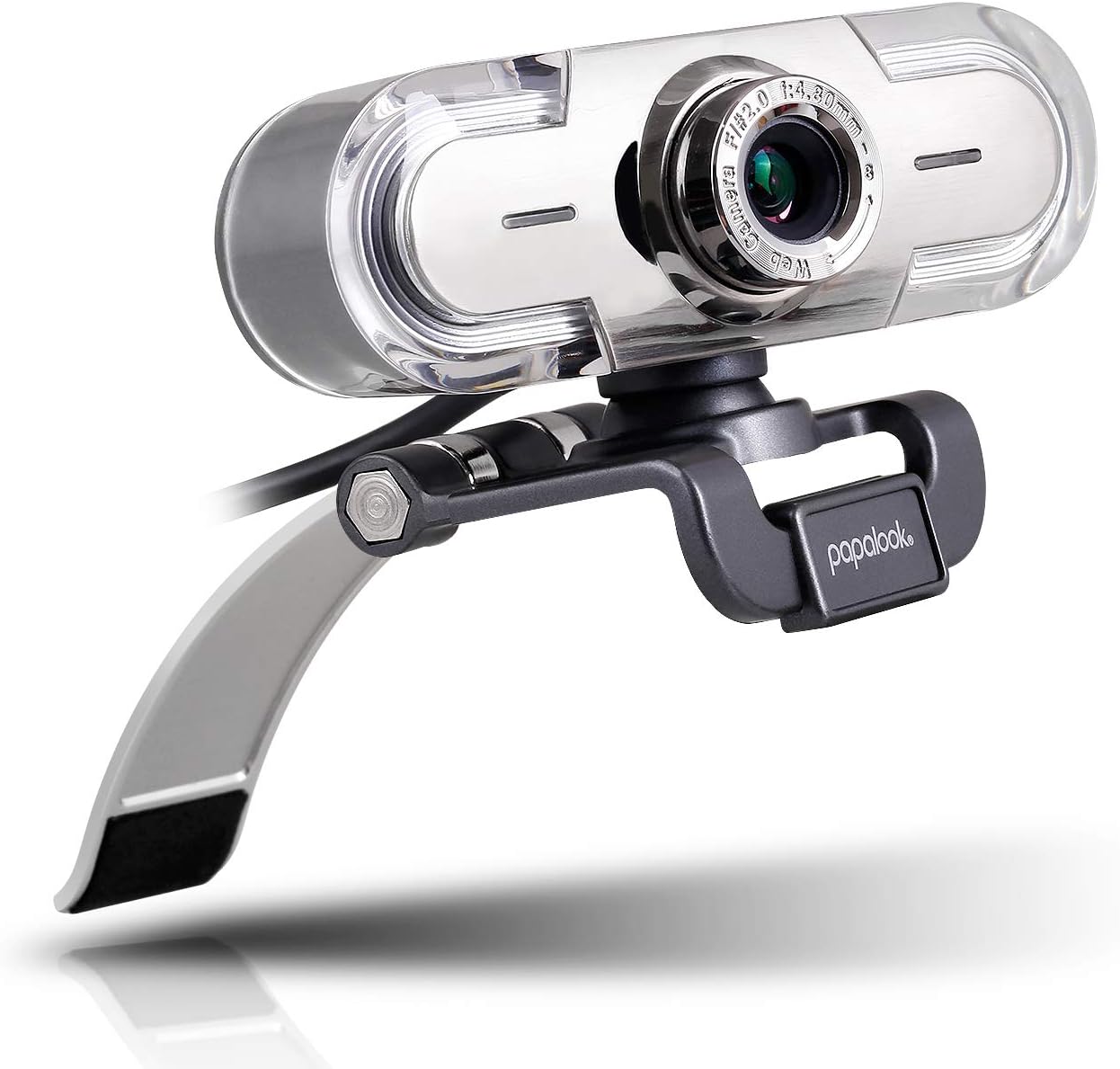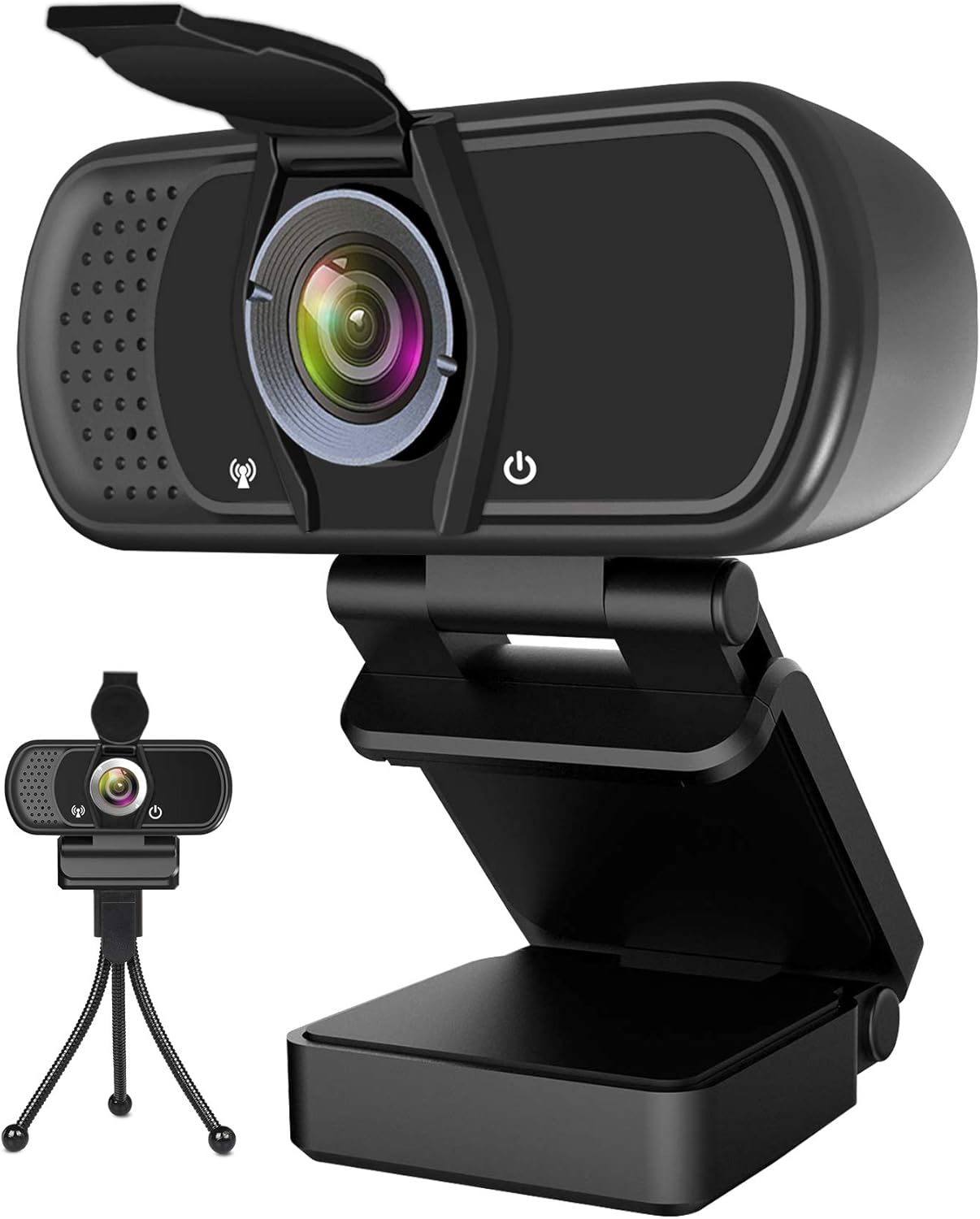



Webcam with Microphone,1080P Webcam Web Camera with Privacy Cover, HD USB Webcam Plug and Play with 95° Wide Angle 2MP Lens for Windows Mac Desktop PC Laptop Video Conference Recording Online Class: Computers & Accessories
- Category: Webcams
- Store: Brand: Walfront
Share on:
Description
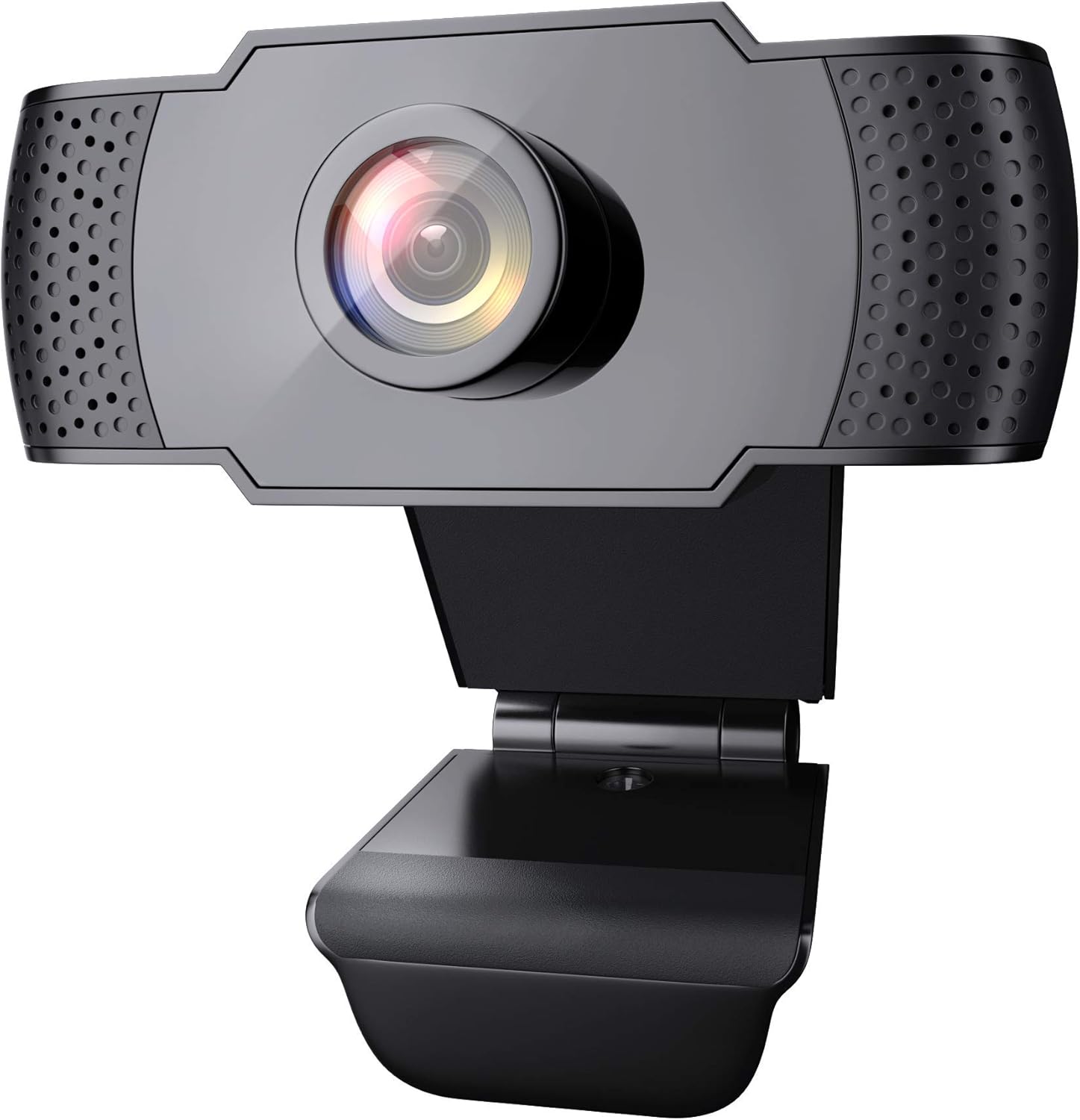
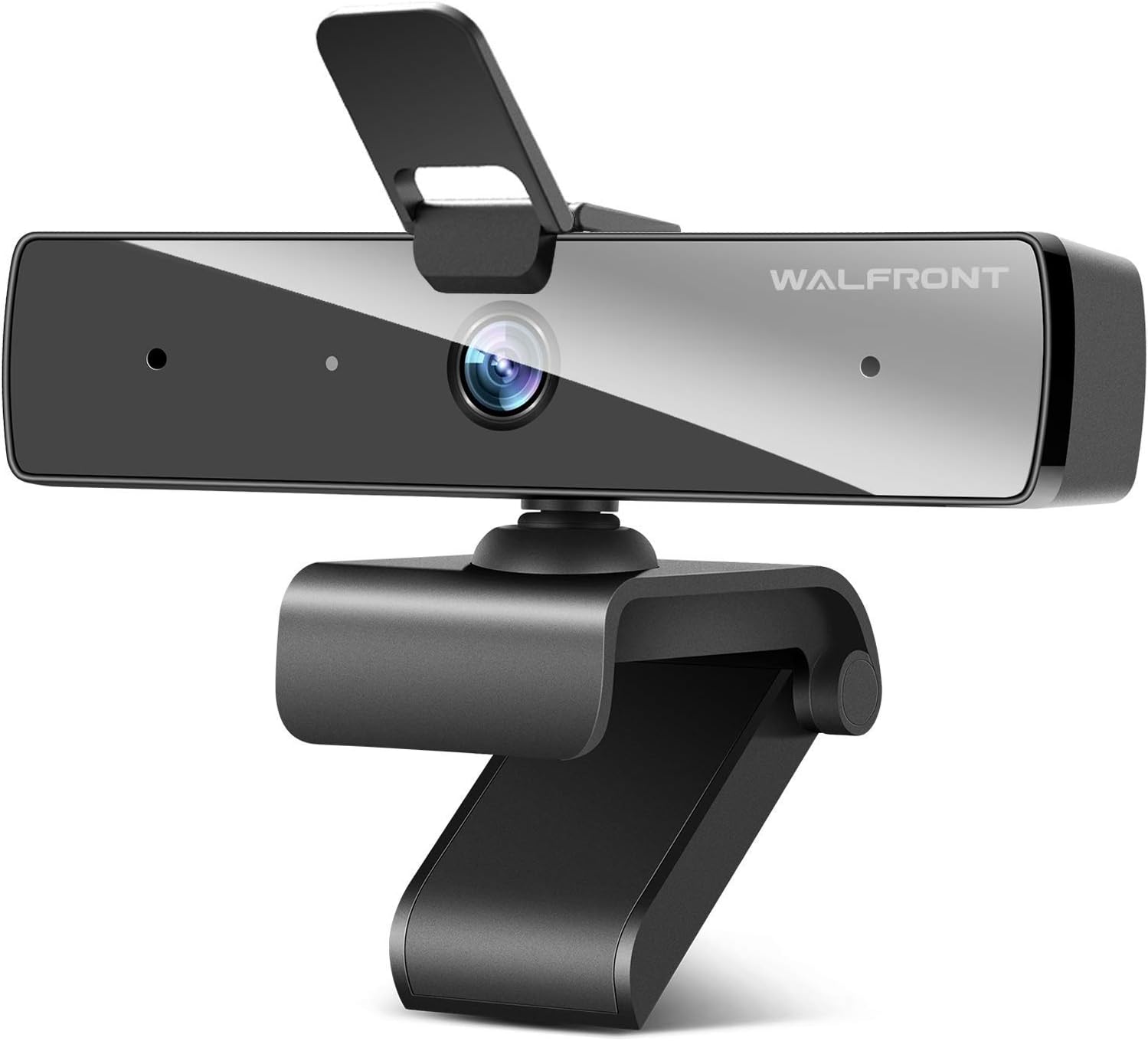
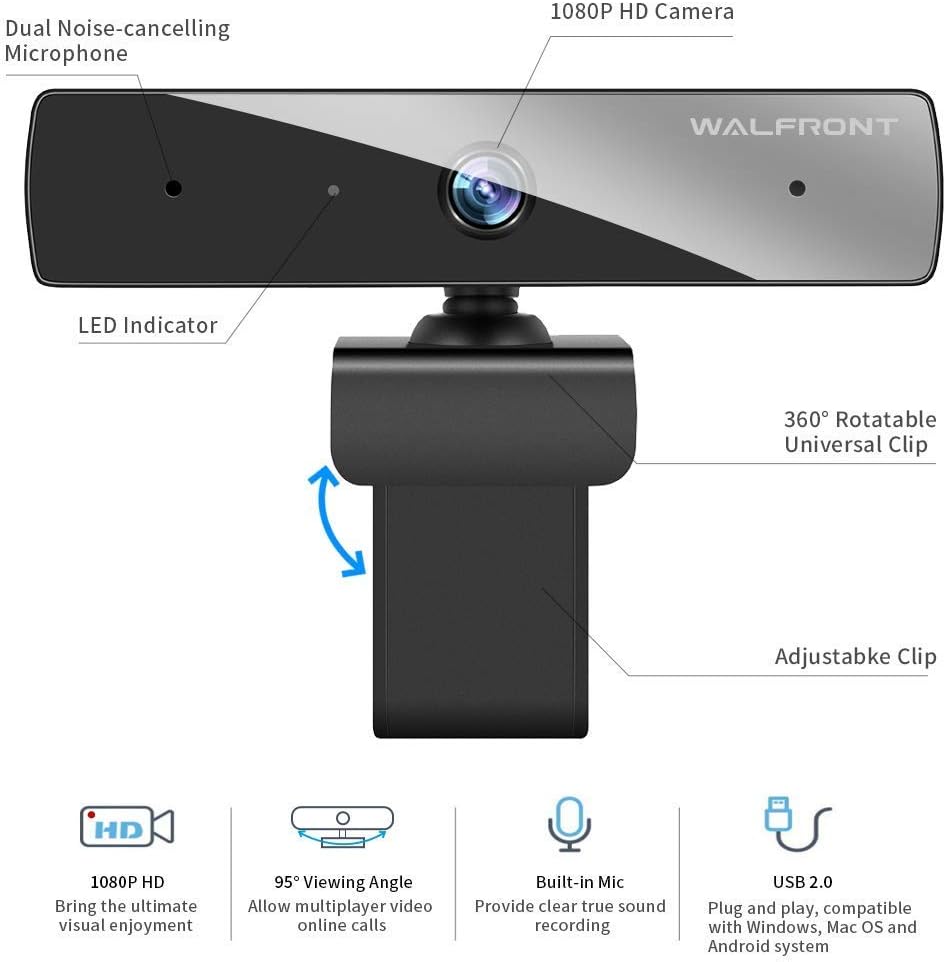
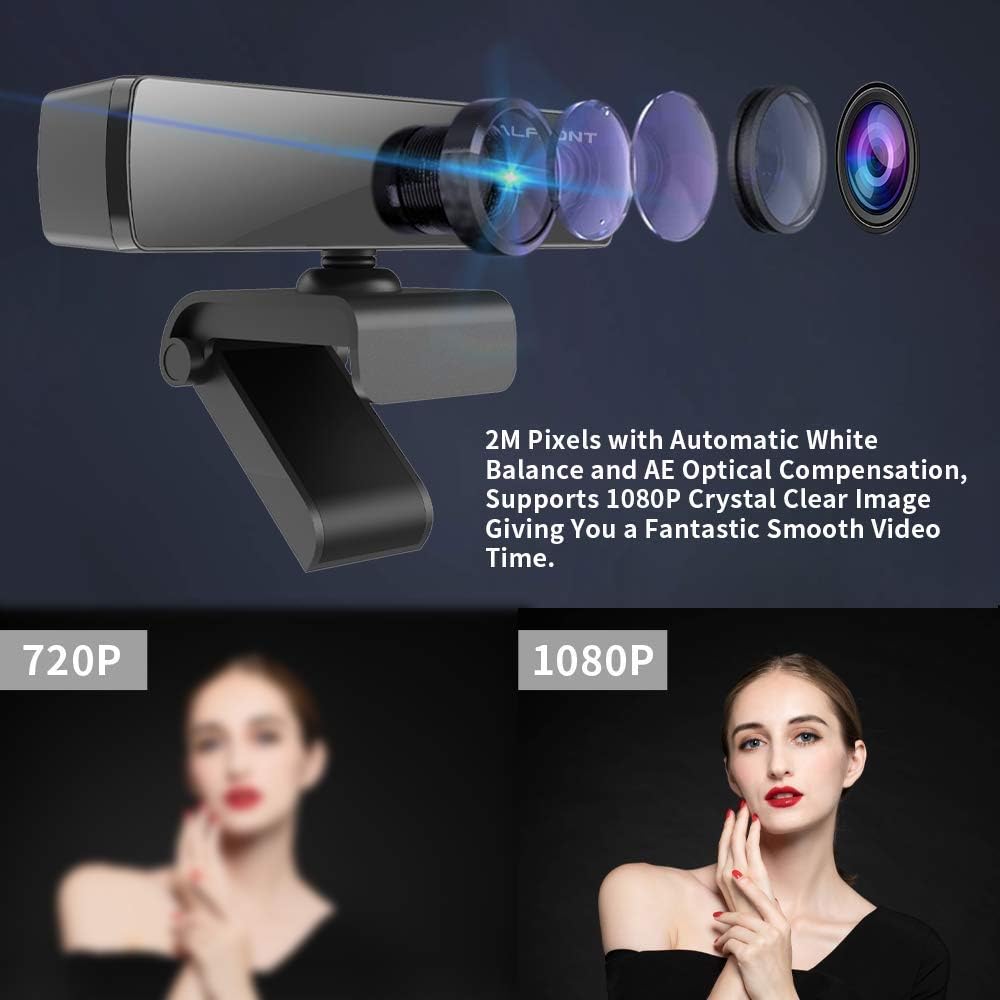
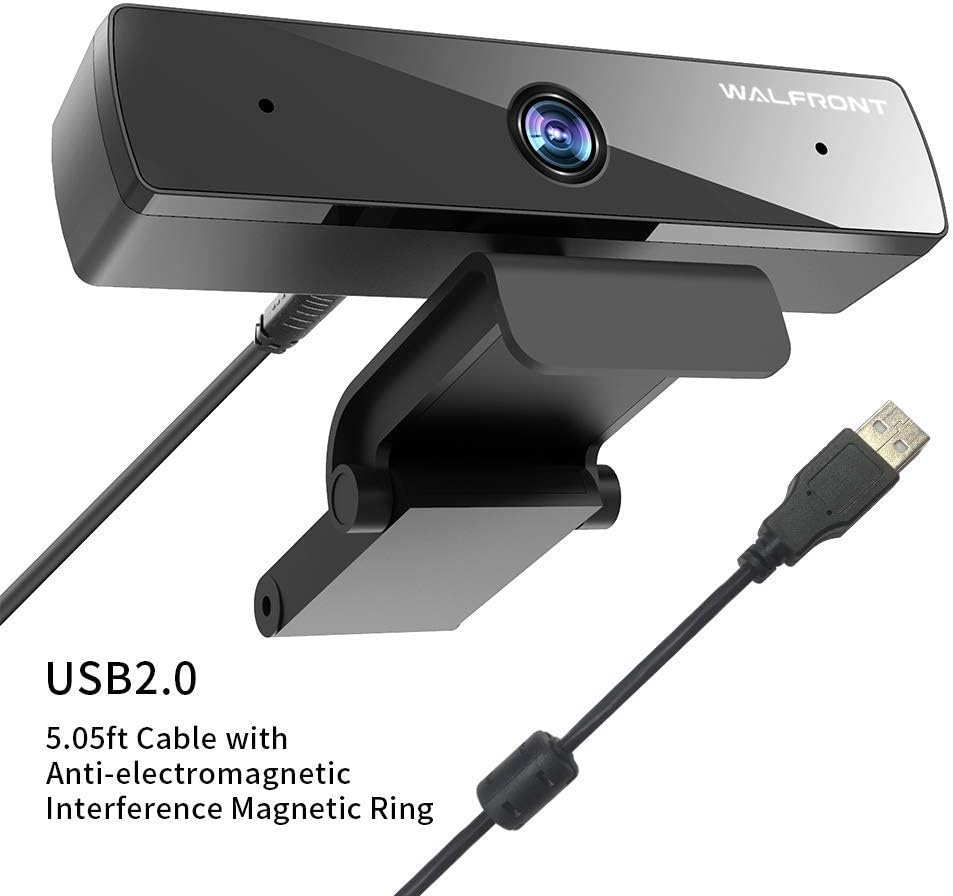
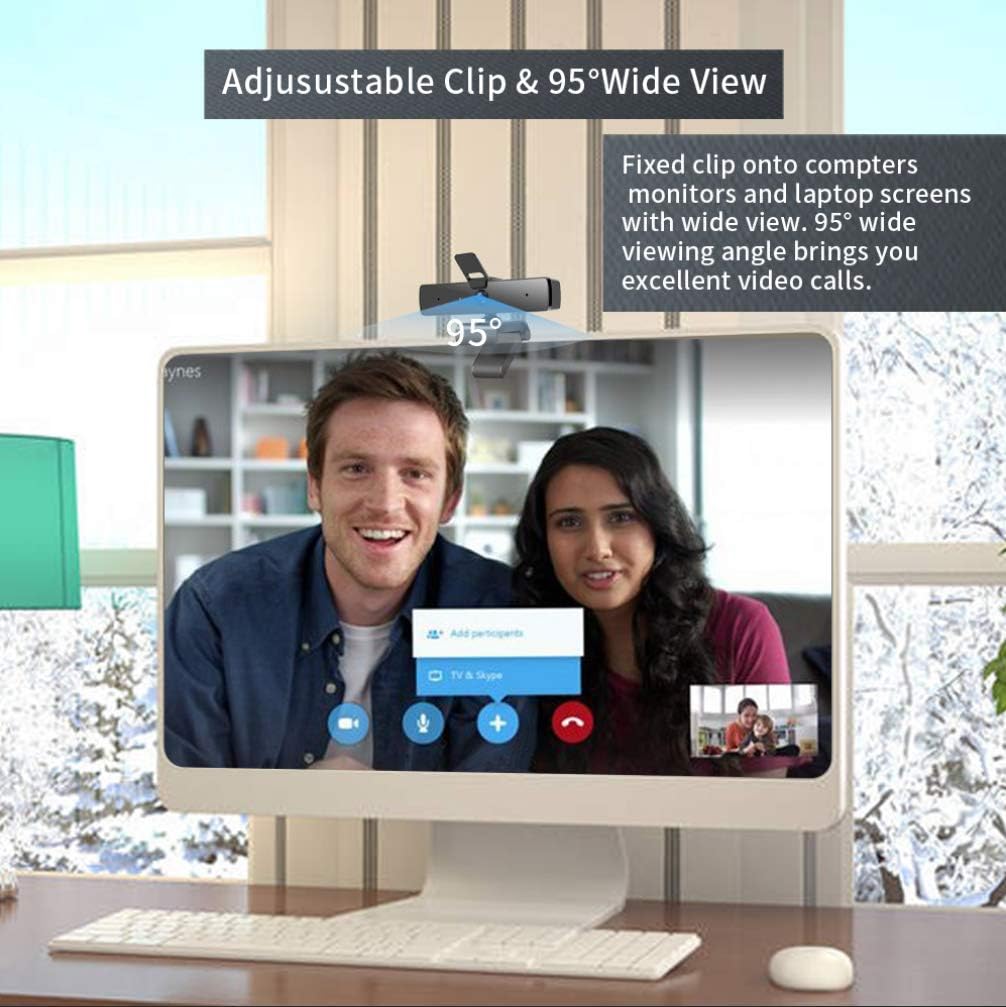
1080P HD Image:Walfront webcam is adopted with 1920*1080 High Definition lens, displaying a fast smooth video at 30 frames per second. With the 95° view angle, this PC webcam can show details clearly and give you a wide view in the room. Also record clear and true vocals by built-in dual stereo microphones. Start enjoying your video time with the webcam.USB Plug and Play:No additional drivers and complex operation, the webcam can complete identification and drivers installation easily. You can plug it to your laptop, desktop, computer or smart TV, then it's able to get up and running on video software immediately.Super Compatibility:Most of video software and computer systems are supported by the 1080P webcam. It works with video software like Zoom, Skype, Facebook, YouTube, Face Time etc. As for the computer systems, it's suitable for Windows / Mac OS 10.6 / Android 5.0 or above.Excellent Practicality:With the computer webcam, you can enjoy your excellent video time for live streaming, gaming, online classes, group video call, family video chat, conference, etc. Every task that requires a webcam can be done easily with the webcam Let it begin your best partner of your video call.Specifications:Model: 1080P Web Camera --S4Sensor: 1/2.8” CMOS Image SensorRecording Resolution: 1080P/720P(30fps)Video Format: MJPEGImage Resolution: 2 megapixelsViewing Angle: 95°Input: DC 5V 100MAUSB Cable Length: 1.54m /5.05ftDimensions: 126 x 52 x 51 mm / 4.96 x 2.05 x 2.01”Q: Why my computer couldn't recognize this webcam?A: If your computer has a built-in camera, please disable it firstly. On Windows 10, right click the start button--Go to device manager--Look for Cameras--Click on the little arrow next to it. You should see two devices, Built-in webcam and the one (HD Webcam USB) you bought. Right click on built-in webcam and disable device. After connect the 1080p webcam, then use OBS, Skype or Zoom to adjust the video parameters as you want. The harsh sound solution of the microphone: 1. Canceling the "microphone boost" in the computer. 2. Keep no speakers around the webcam. 3. Please turn off the microphone built into the computer.
Product Overview
We Recommend