
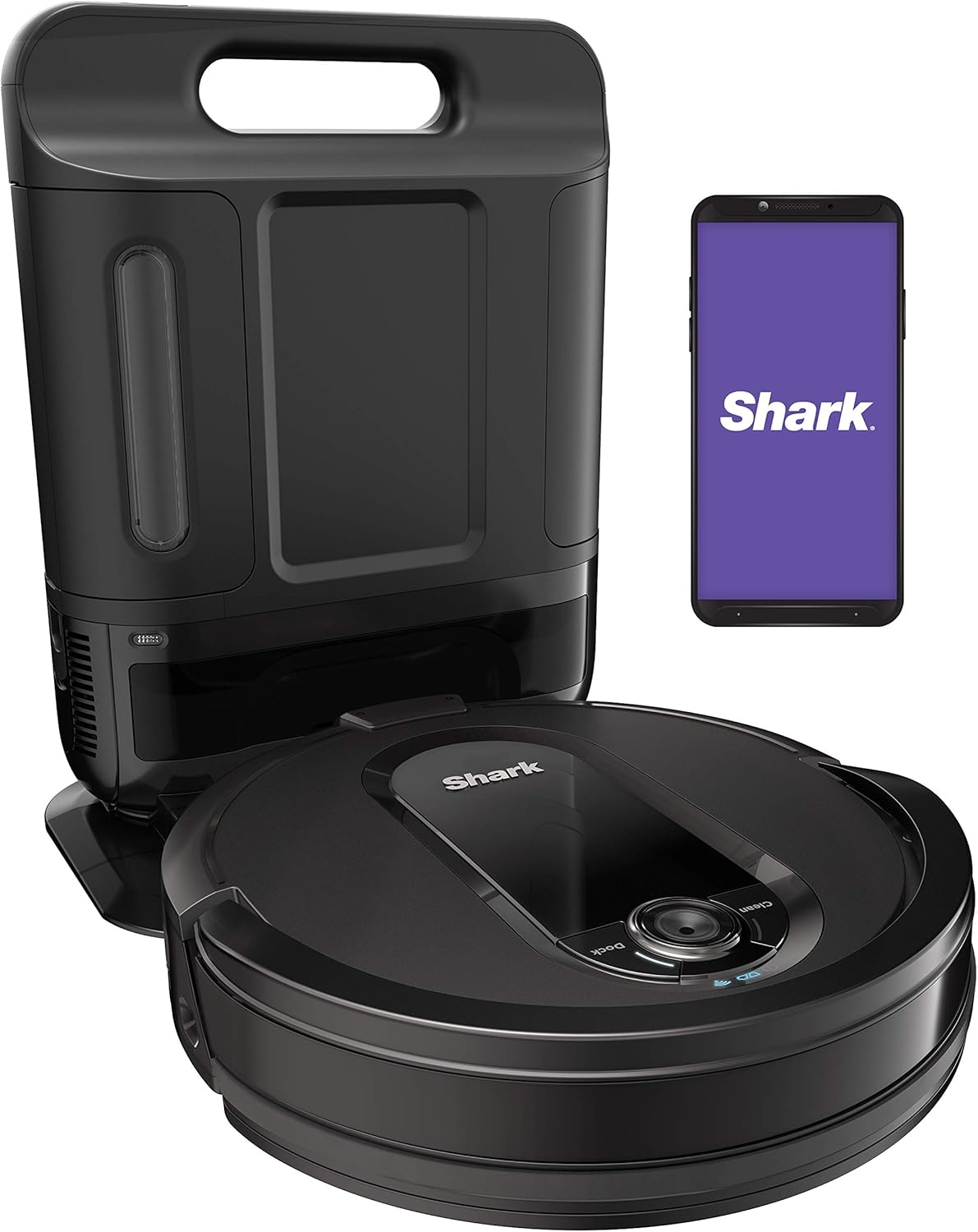
Shark IQ Robot Vacuum AV1002AE with XL Self-Empty Base, Self-Cleaning Brushroll, Advanced Navigation, Wi-Fi, Compatible with Alexa, 2nd Generation: Home & Kitchen
- Category: Robotic Vacuums
- Store: Shark
Share on:
Description
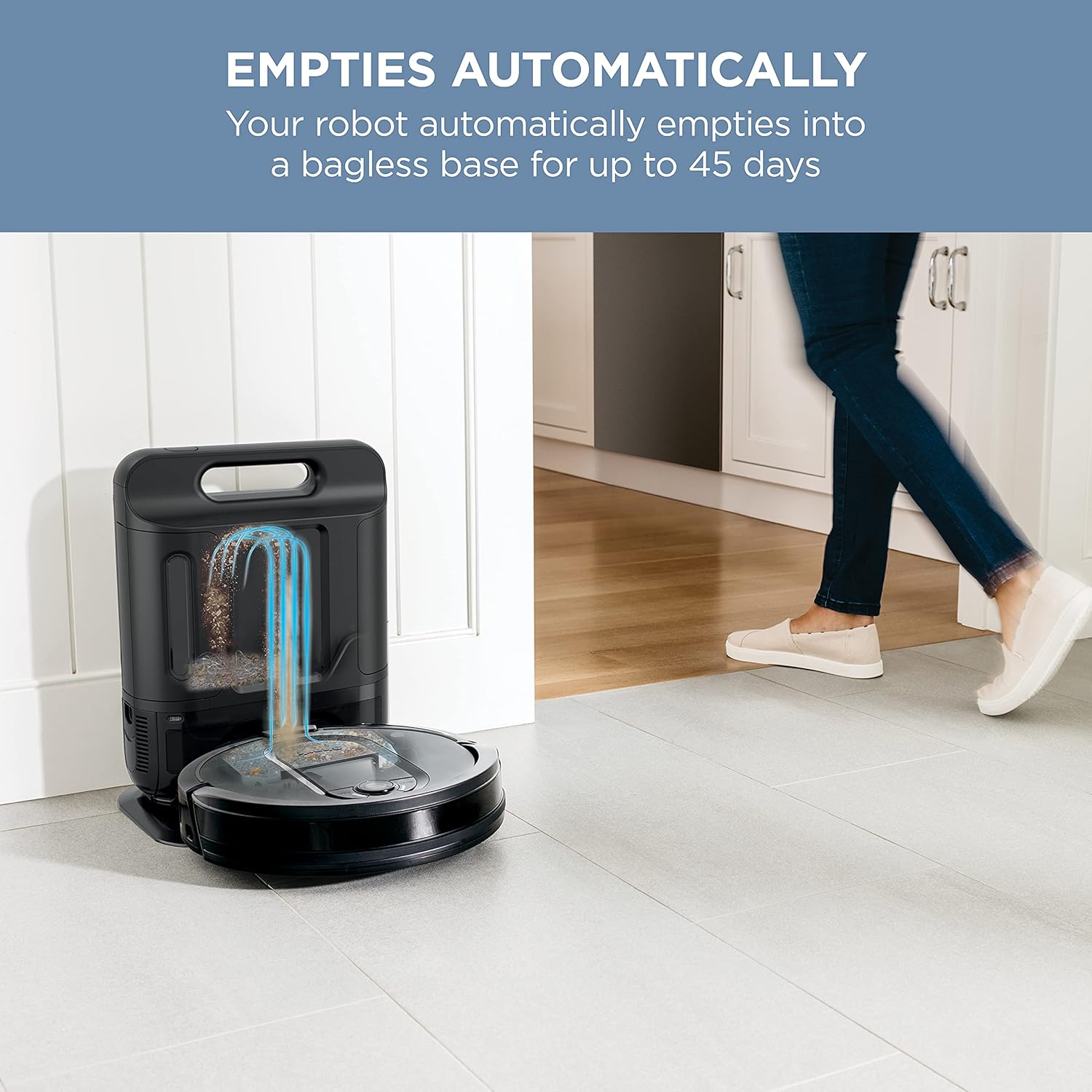
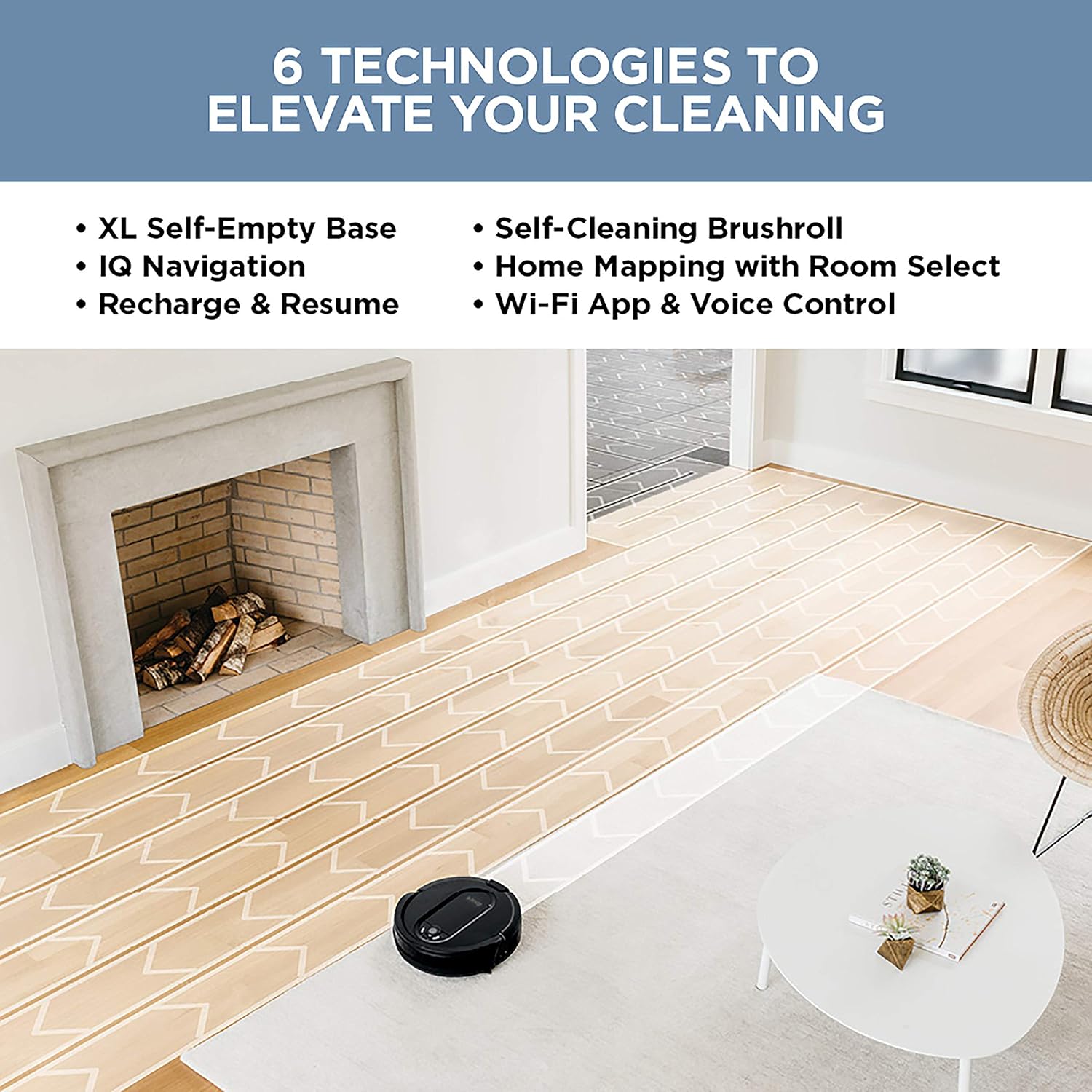
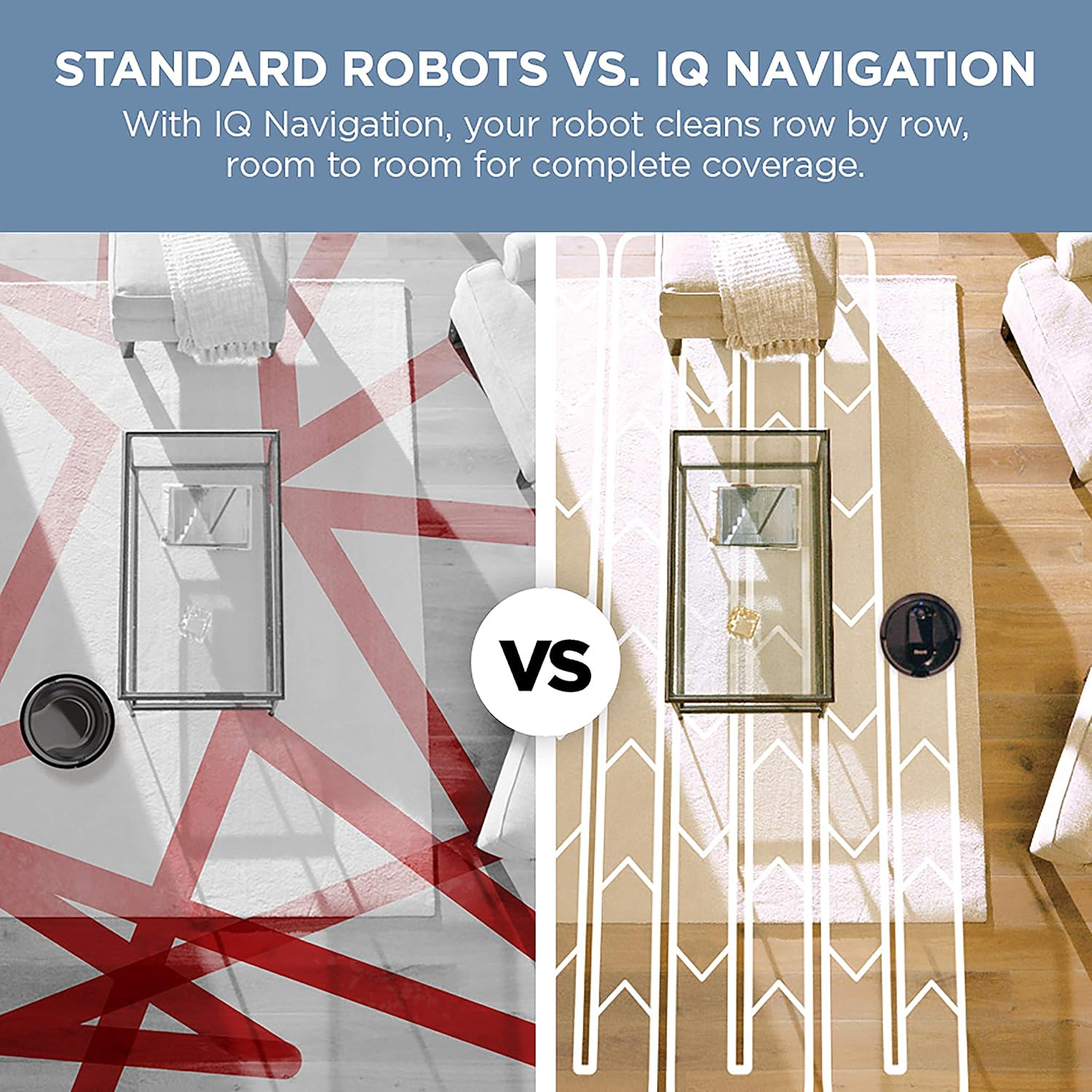
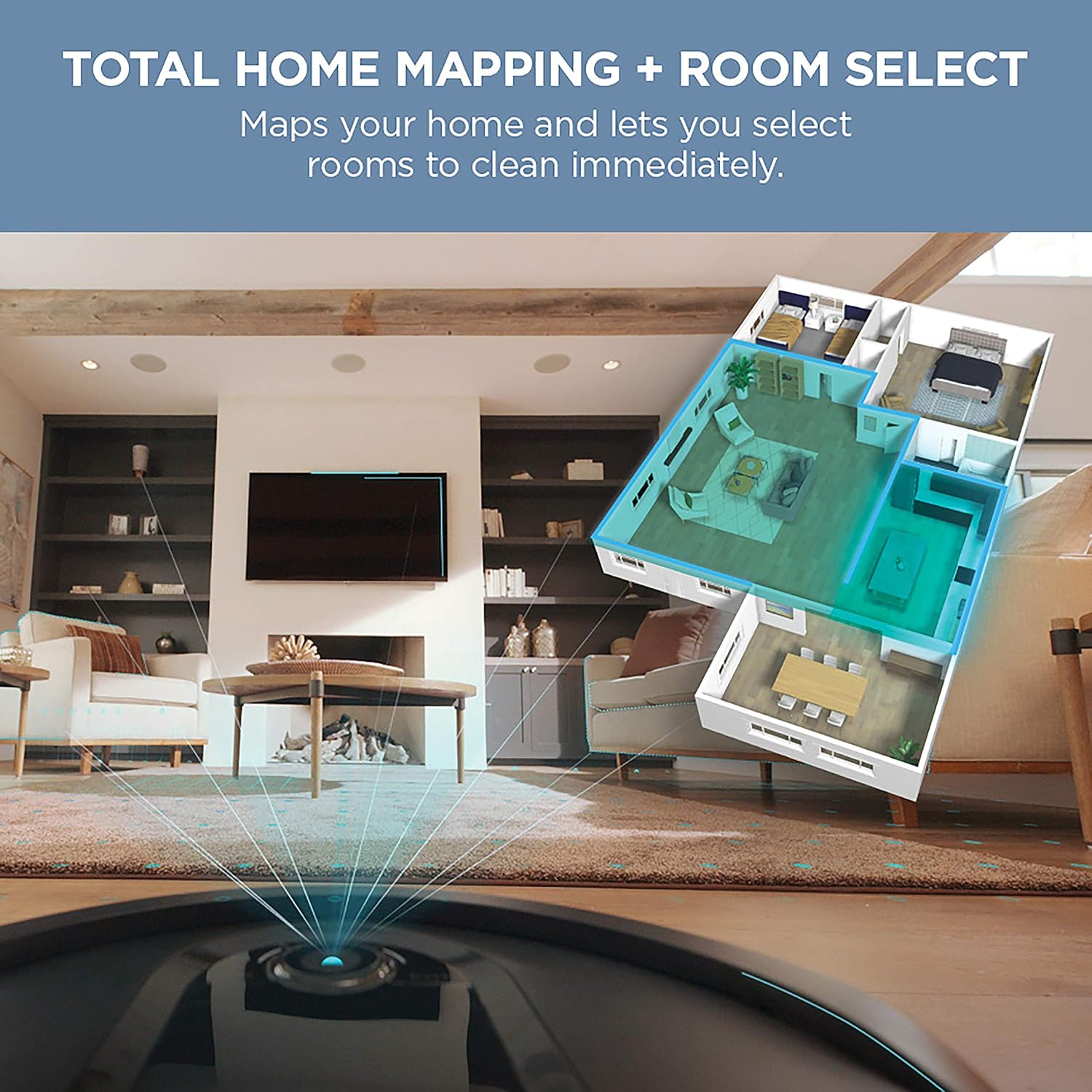
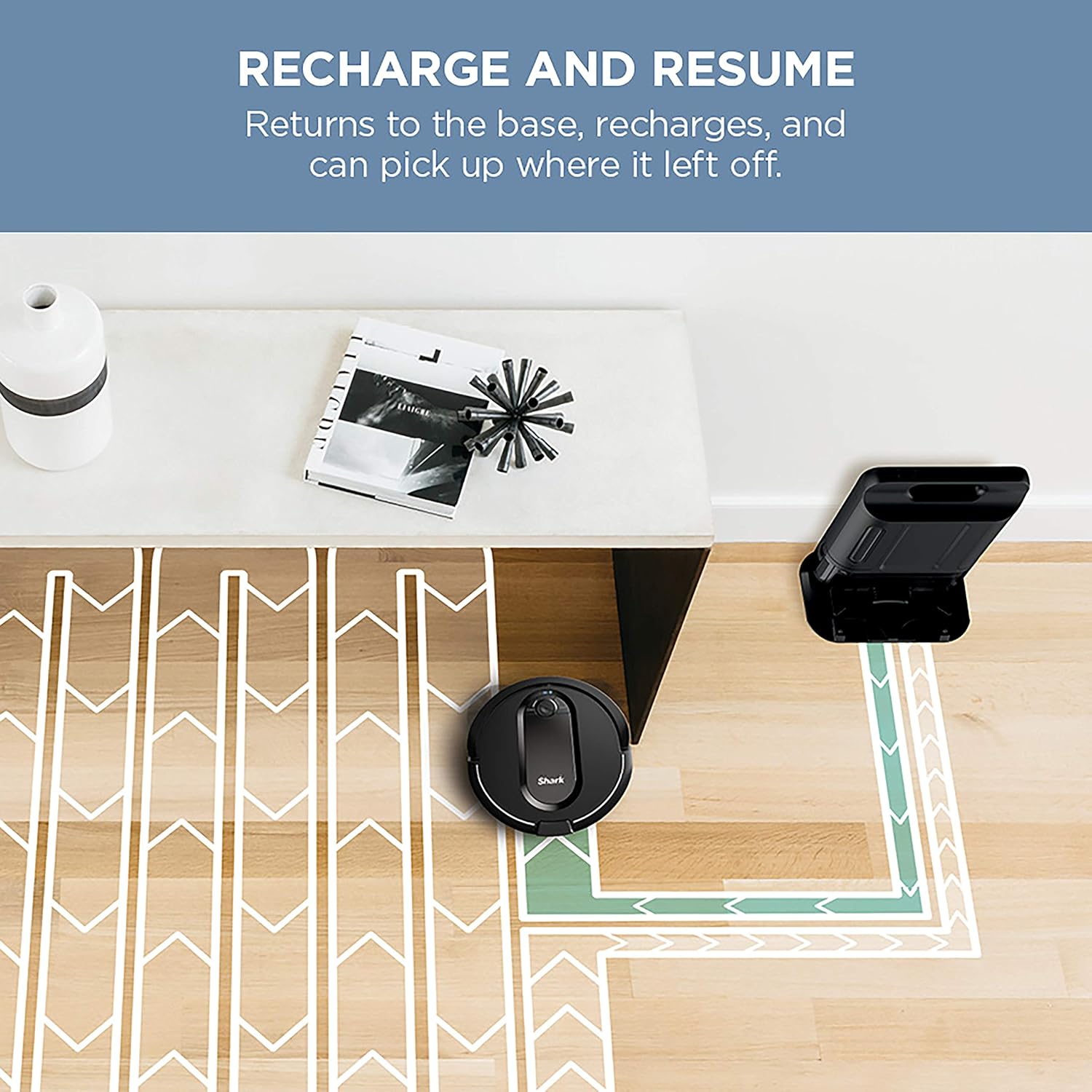
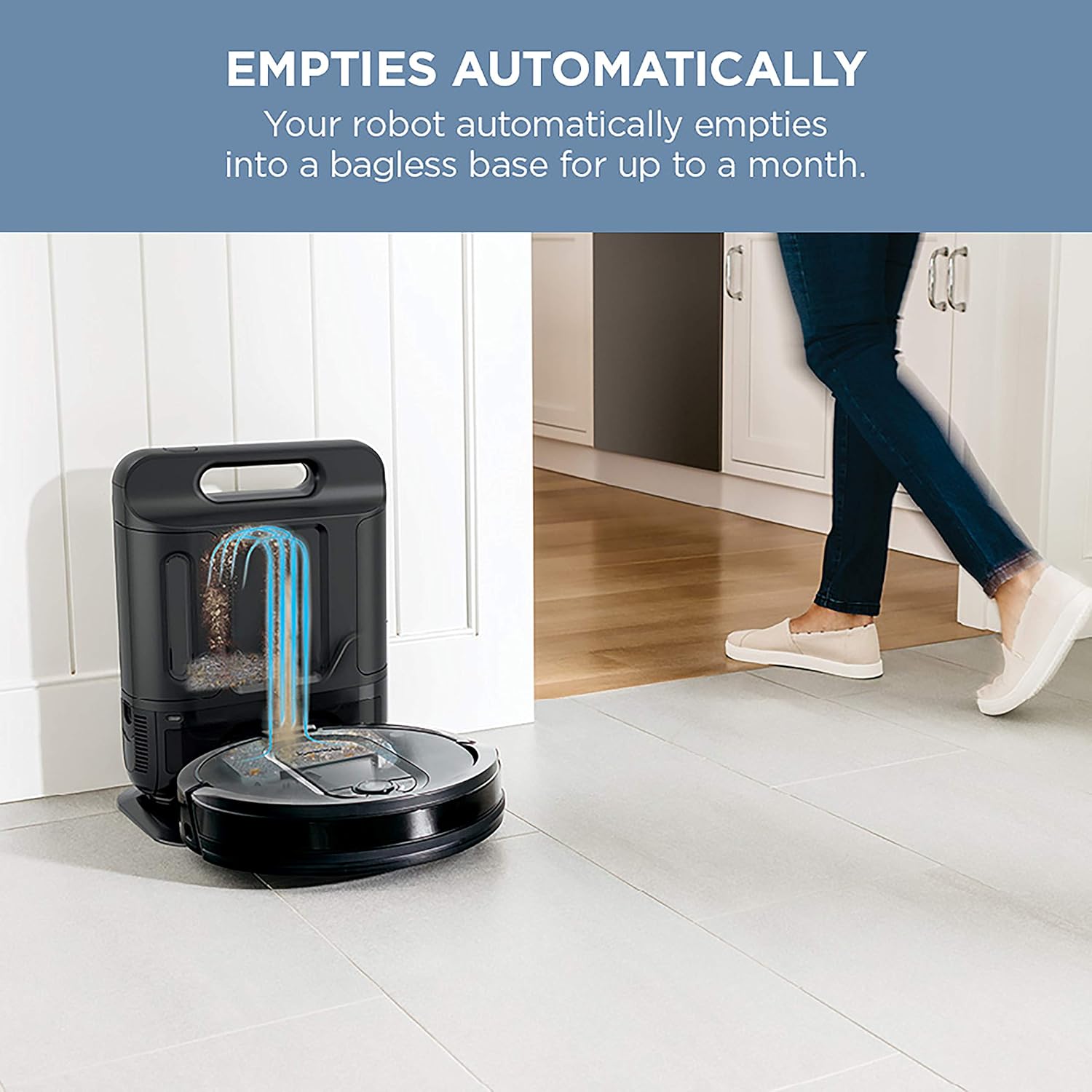
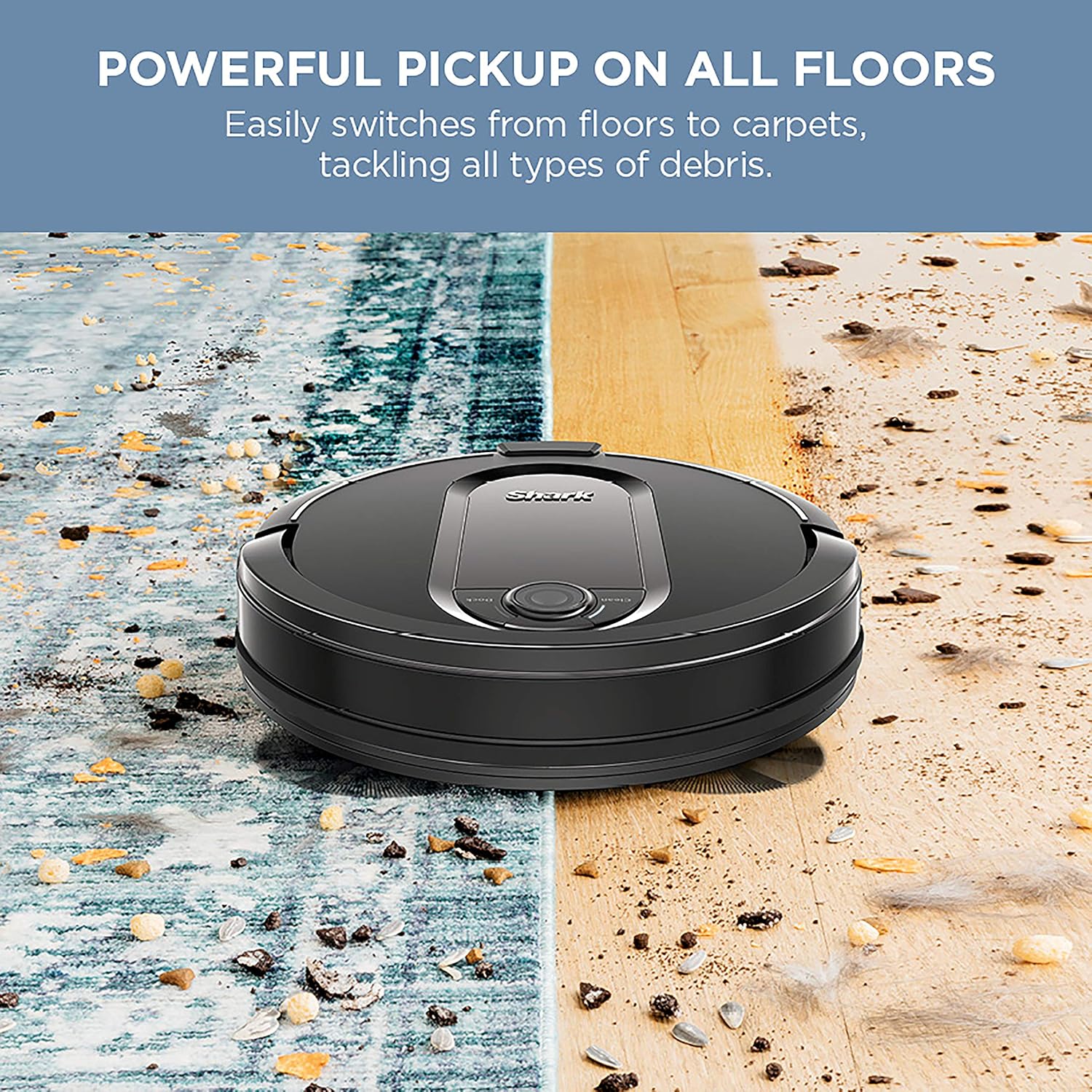
Dual spinning side brushes pull in debris from edges and corners.Uses thousands of data points to assess location and create a map.Deep-clean floors & prevent long hair & pet hair from wrapping.Detect walls, corners, and obstacles.Identify stairs and ledges to ensure your robot doesn’t fall.Directs hair & debris to the center of the brushroll.The Shark IQ Robot vacuum combines convenience with intelligence and performance. After each cleaning session, your robot vacuum automatically empties the dust bin into the bagless base, which holds dirt and debris from up to 30 cleaning sessions. With IQ Navigation, your robot now maps your whole home, allowing you to select which rooms to clean right now with Shark Clean App or Amazon Alexa. The Shark IQ Robot cleans row by row to assure total floor cleaning. With recharge and resume, it will return to the base, empty, recharge, and can pick up where it left off. And with Shark powerful suction and a self-cleaning brushroll, you get amazing cleaning performance. Wifi Troubleshooting: Make sure your phone is connected to your home Wi-Fi network before trying to connect your robot. Typical home Wi-Fi networks support both 2.4 GHz and 5 GHz. Make sure you are connected to a 2.4 GHz network when you enter your username and password. Ensure your robot is turned on and you hear an audio prompt. Do not use a VPN or a proxy server. Make sure Wi-Fi isolation is turned off on the router. There may be instances where your Shark robot loses connectivity while operating, due to a weak Wi-Fi signal, or entering a zone that blocks Wi-Fi. -Press the switch on the side of the robot to turn OFF (O) the power. -Wait 10 seconds, then turn the power back on and wait for the voice prompt. - Power off your phone, wait 30 seconds, and power back on. -Open Wi-Fi settings on your phone, find the Shark network, then select Forget Network. Reopen the SharkClean app and retry the connection process. It is normal for your robot to temporarily lose connectivity when it goes under furniture, or moves far from your router. Your Shark robot will automatically reconnect to Wi-Fi. If for some reason, the robot does not reconnect on its own, remove the unit from the dock. Power the robot off, wait 10 seconds, power the robot back on, and place it back on the dock.
Product Overview
We Recommend