
Gaming Headset with Mic for Xbox One,PC,PS4,Over-Ear Headphones with Volume Control LED Light Cool Style Stereo,Noise Reduction for Laptops,Smartphone,Computer,Nintendo Switch: Home Audio & Theater
- Category:
- Store: ENVEL
Share on:
Description
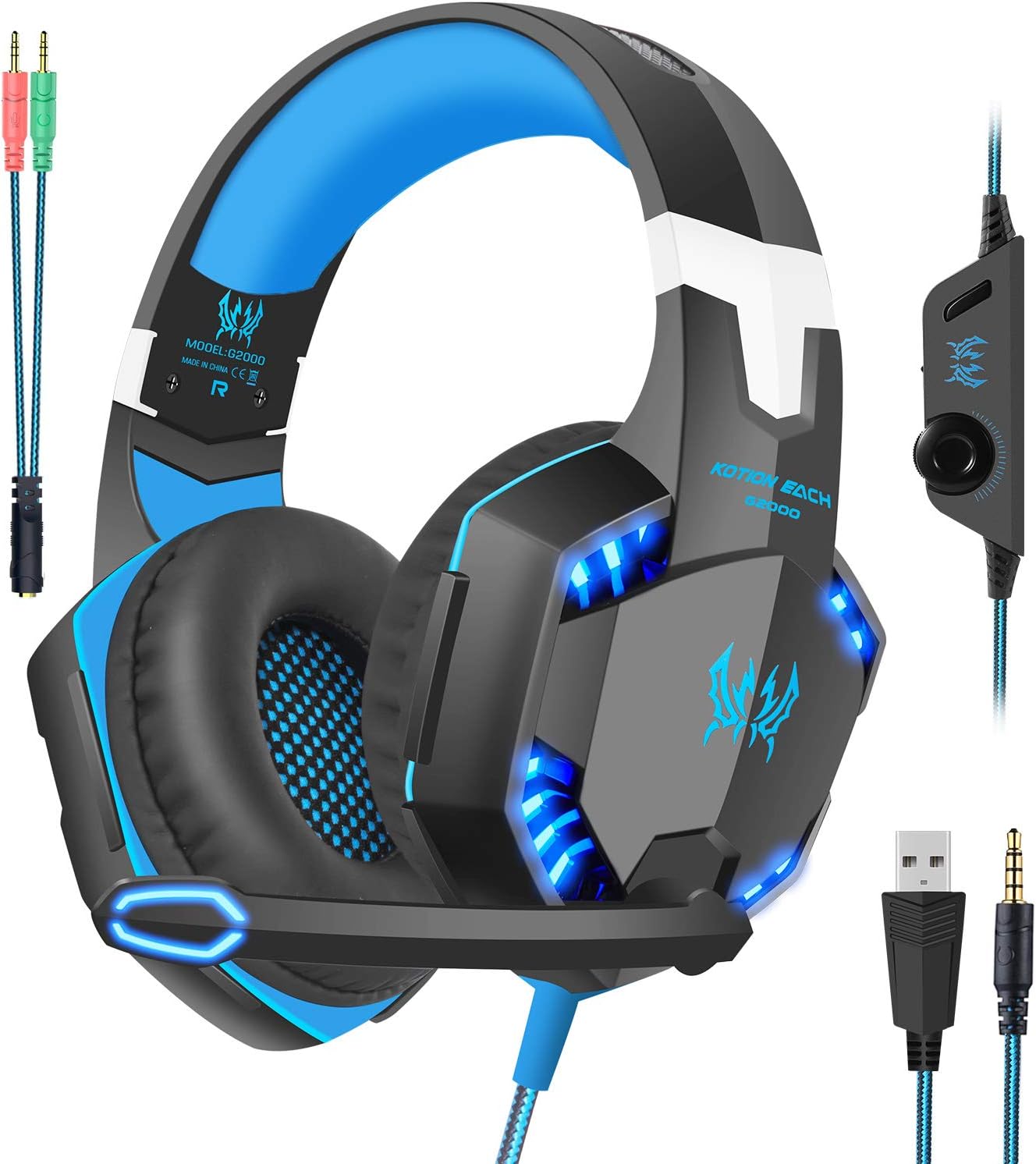
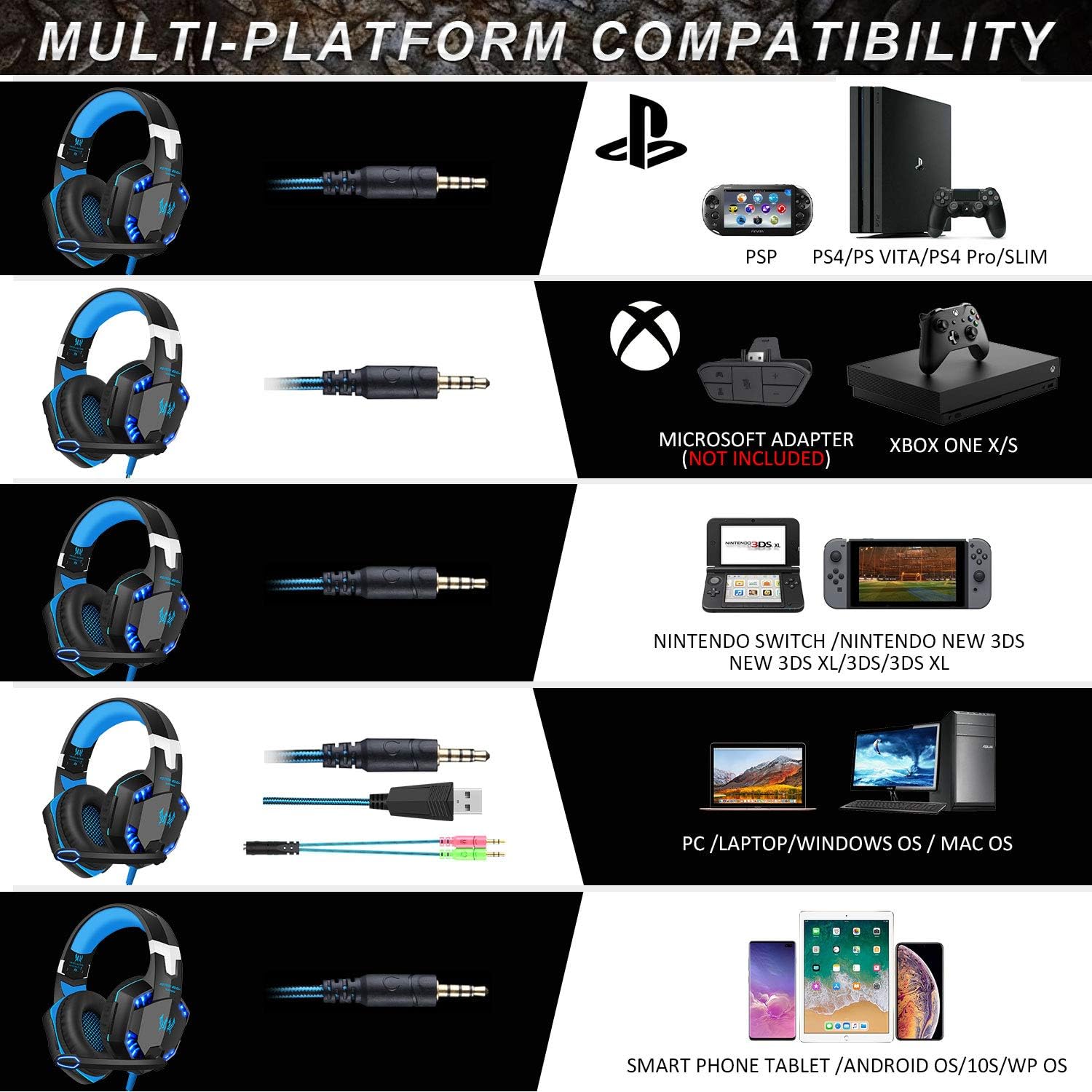
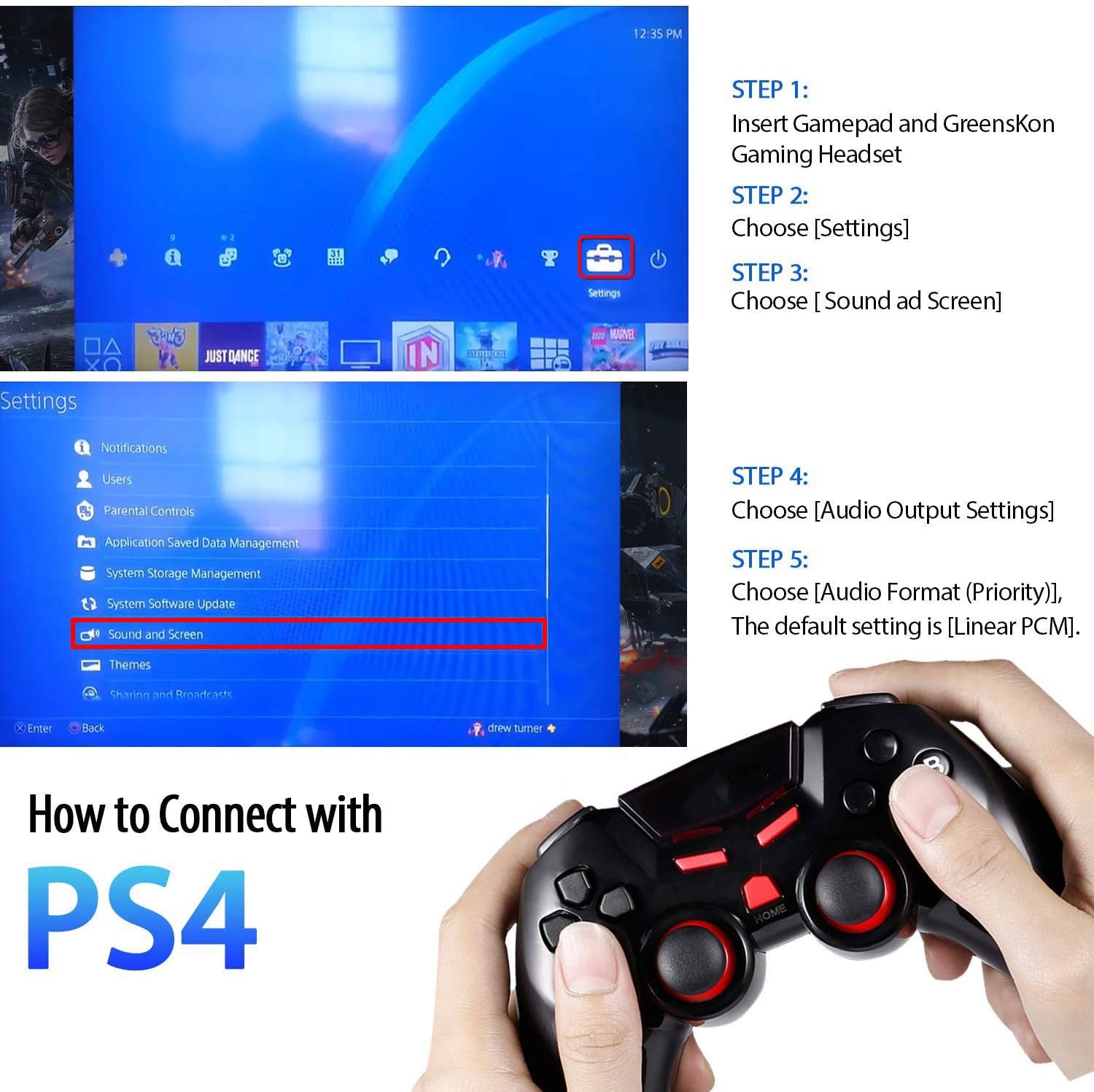
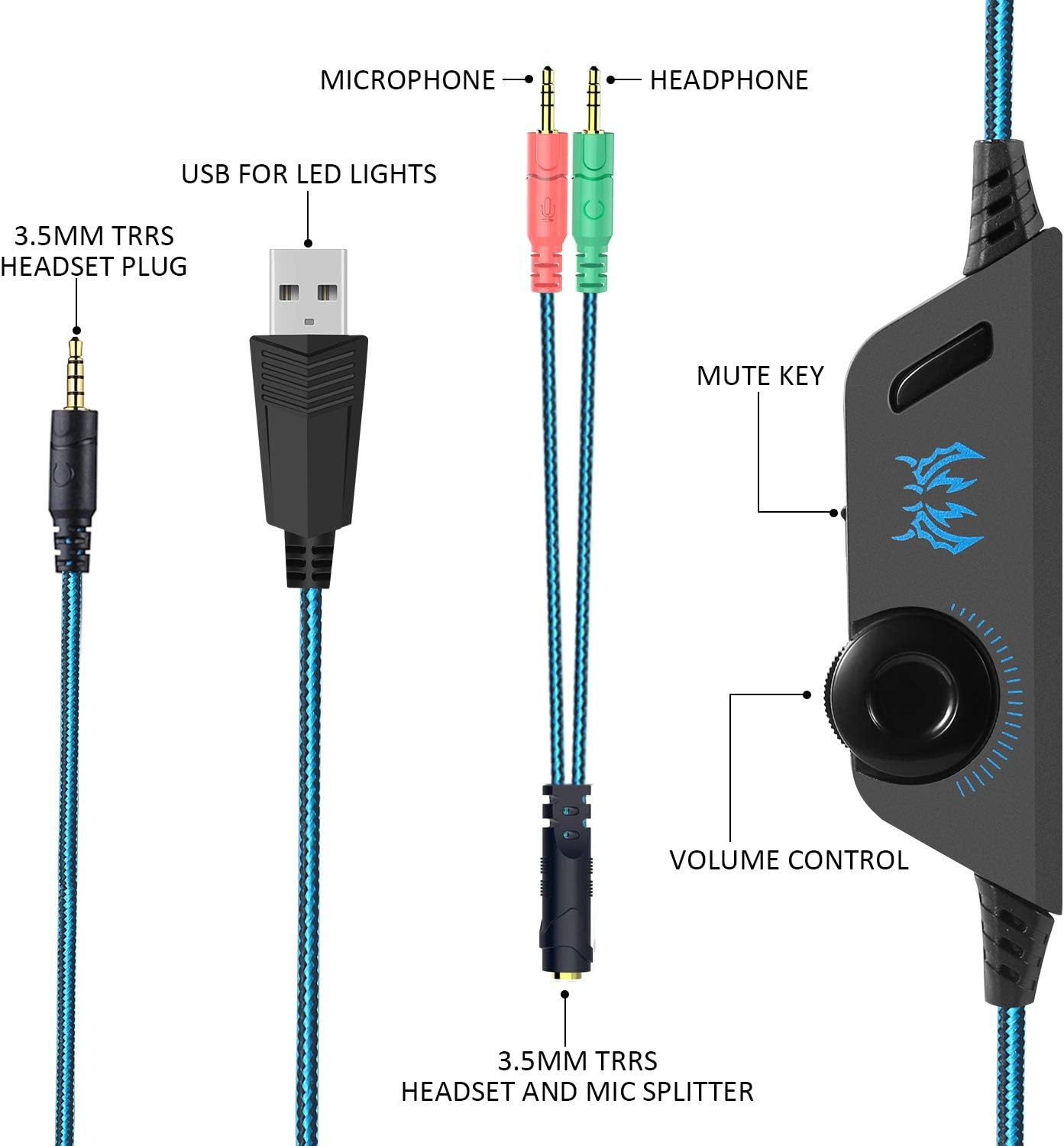
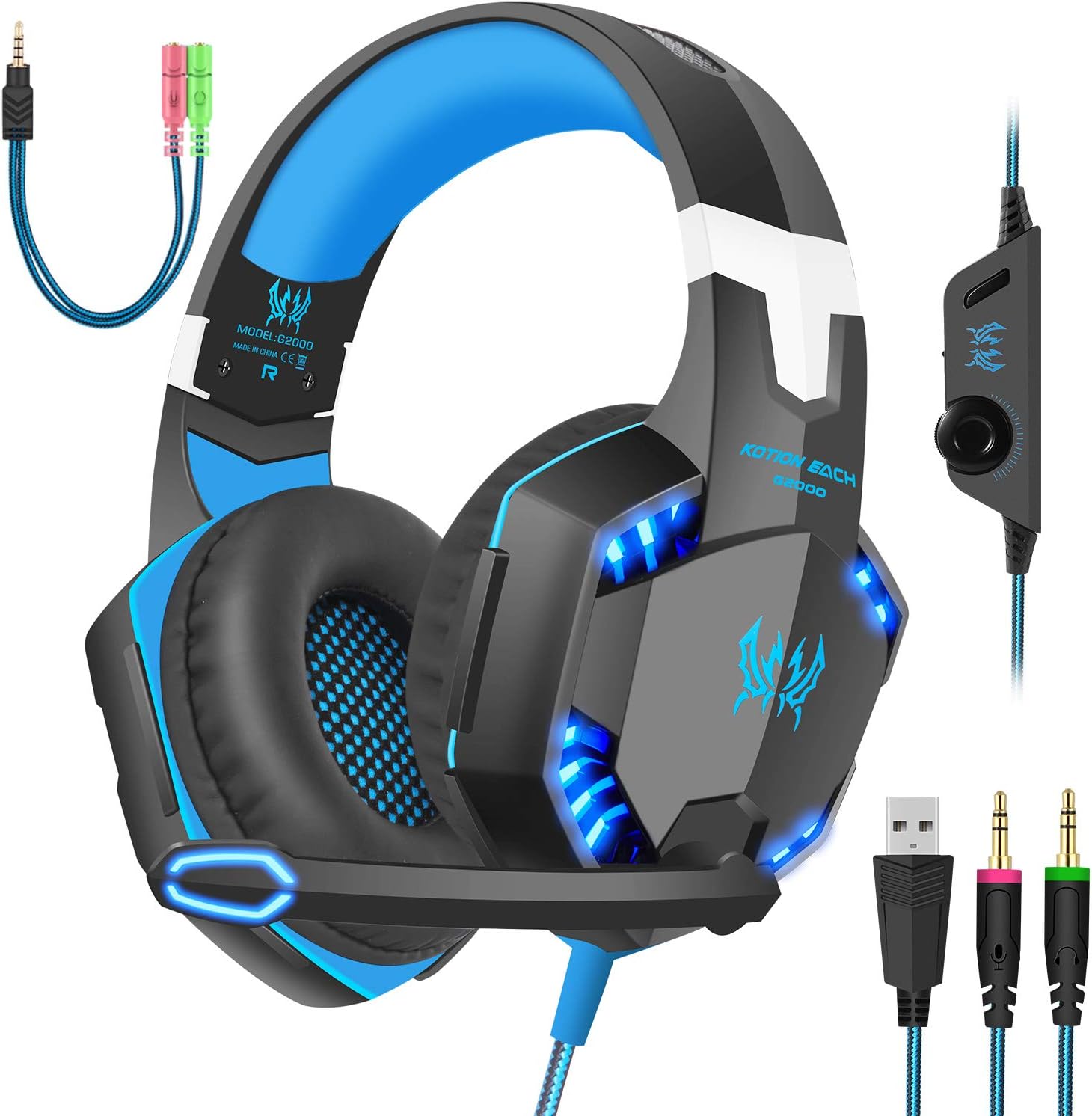
ENVEL G2000 gaming headset works on Windows PC,Xbox One,PS4, PS vita, PSP, Nintendo Switch (audio), Nintendo New 3DS LL/3DS (audio), Nintendo 3DS LL/3DS (audio), Mac OS PC, iOS device and Android device. With our ENVEL gaming headset, gamer can always enjoy a immersive gaming experience no matter in which platform. Plug and play. Notes: 1. An Extra Microsoft adapter (Not Included) is needed when connect with old version Xbox One controller. 2. A Female to 2 Male 3.5mm jack splitter cable (Included) is needed when you connect with PC if you want to use headphone and microphone at the same time. 3. The USB interface is only used for power supply to LED light to highlight the atmosphere of the game. Our ENVEL G2000 gaming headset is the Professional PC Gaming Headset that focuses on what you needs: balanced sound for all your gaming and music needs with a lightweight comfortable design and immersive sound quality. Package Content: 1 * G2000 Pro Gaming Headset ; 1 * Multi-language User Manual; 1 * Audio Y Splitter How to Setting: [PC Headset] 1. Headset Splitter(Y Female to Male)(Included) Audio Cable is needed when using the headset on PC. 2. Connect the pink plug to mic and the blue plug to headphone when using the headset on computer. 3. Make sure that both Headset Microphone and Computer Microphone are turned on. 4. Double-click the Speaker icon which is in your computer taskbar to enter the Control Panel for setting the Voice. [Xbox One Headset] 1. New Xbox One controller with a 3.5mm interface can be matched with this headset with 3.5mm plug. 2. The Old Version of Xbox One controller without a 3.5mm interface need an extra Adapter (Not Included) to match with this headset. 3. Find the Xbox ONE setting icon, choose "Devices"--"Audio". 4. "SOUND-SUBTITLES": choose "ON";"VOICE CHAT": choose ",ON";"VOICE CHAT METHOD": choose "OPEN MIC";"VOICE CHANNEL": choose "PARTY";"VOICE CHAT NOTIFICATIONS": choose "ON". [PS4 Headset] 1. Find the PS4 setting icon, choose "Devices"--"Audio Devices" 2. "Output Device": choose "Headset Connected to Controller" 3. "Output to Headphones": choose "All Audio" 4. Microphone Level: 80%(Attention: for this option on some devices, we suggest setting on 80%) Notes: 1. For Xbox 360 and PS3,you need a extra adapter(2.5mm to 3.5mm) 2. The USB interface is only used for power supply to LED light. 18 Months Replacement Service from ENVEL: Your satisfaction is our highest priority. Just send messages to us with any questions regarding our products.
Product Overview