


AUKEY USB C Hub 12-in-1 Type C Adapter with Ethernet, 4K HDMI,VGA,2 USB 3.0,2 USB 2.0,100W PD,USB-C Data Port and SD/TF Docking Station for MacBookPro/Air(Thunderbolt 3) and Other USB-C Laptops: Computers & Accessories
Share on:
Description
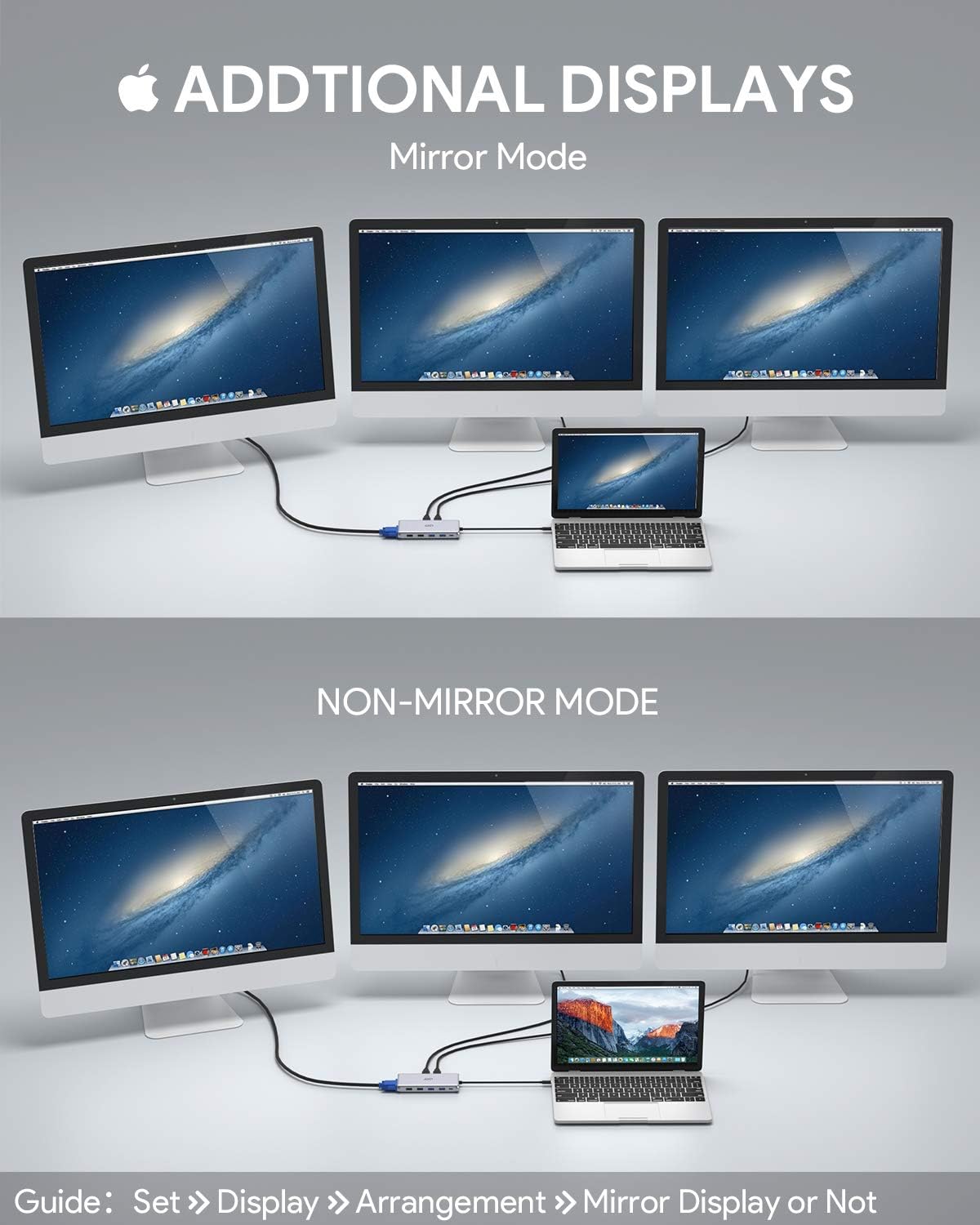
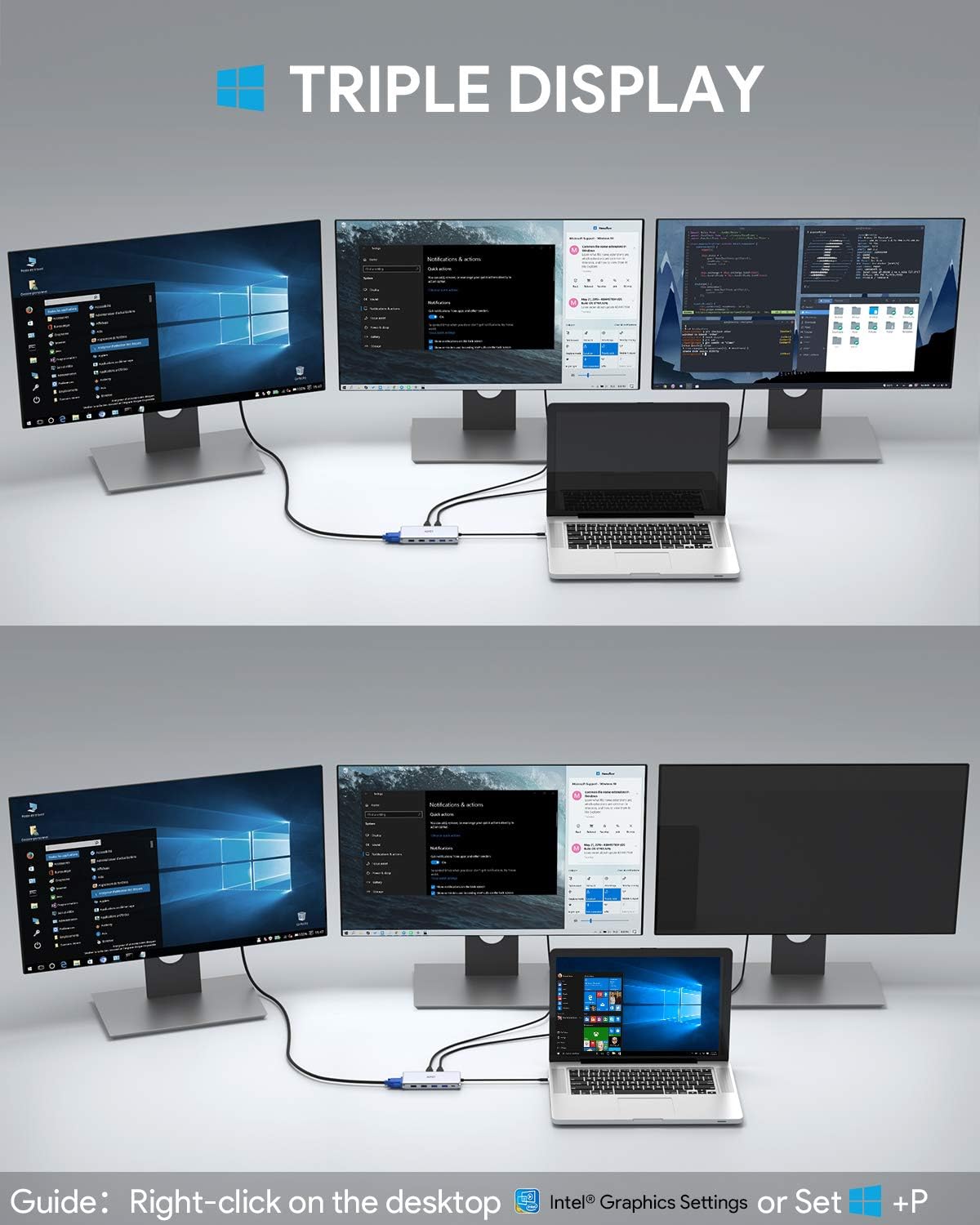
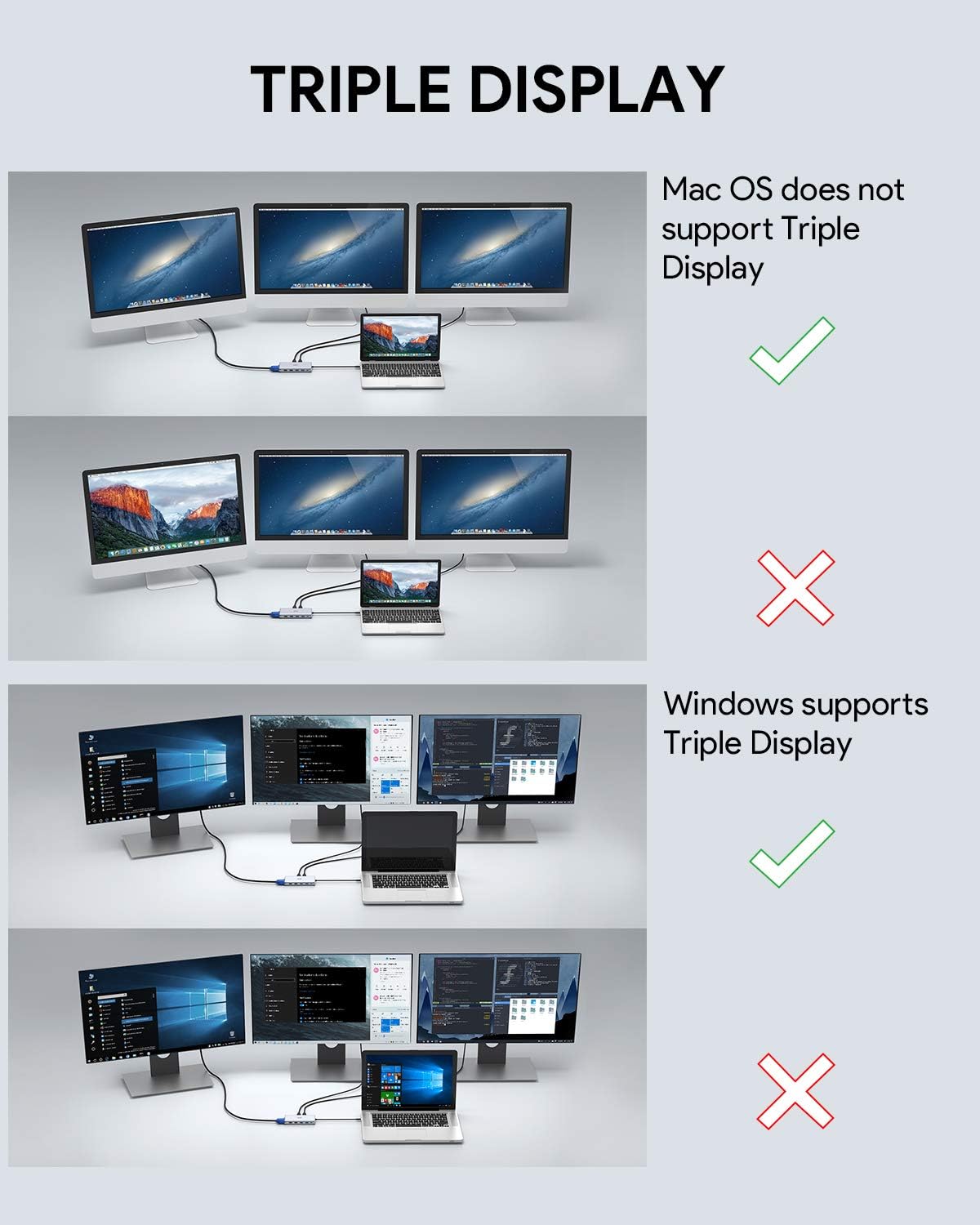
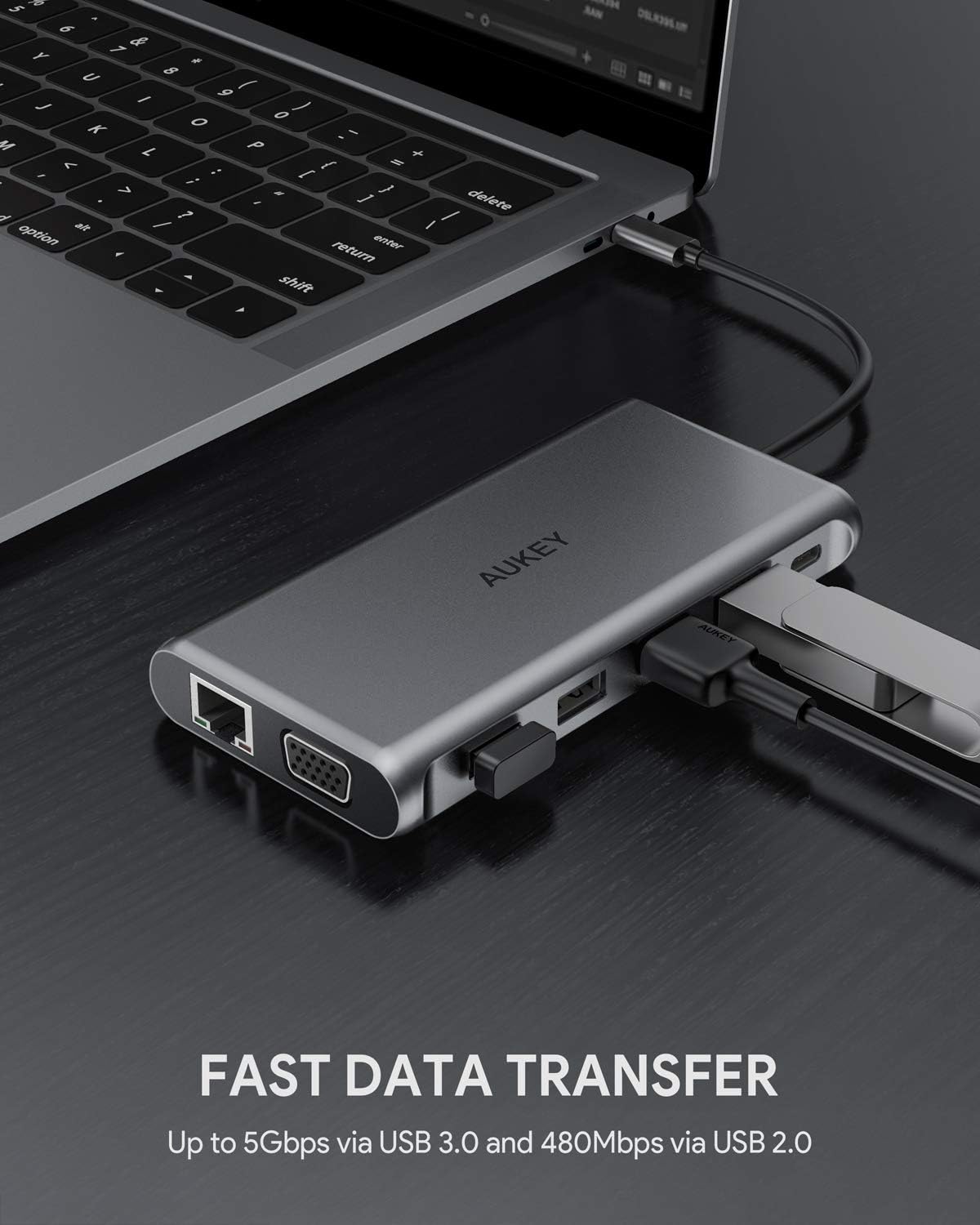
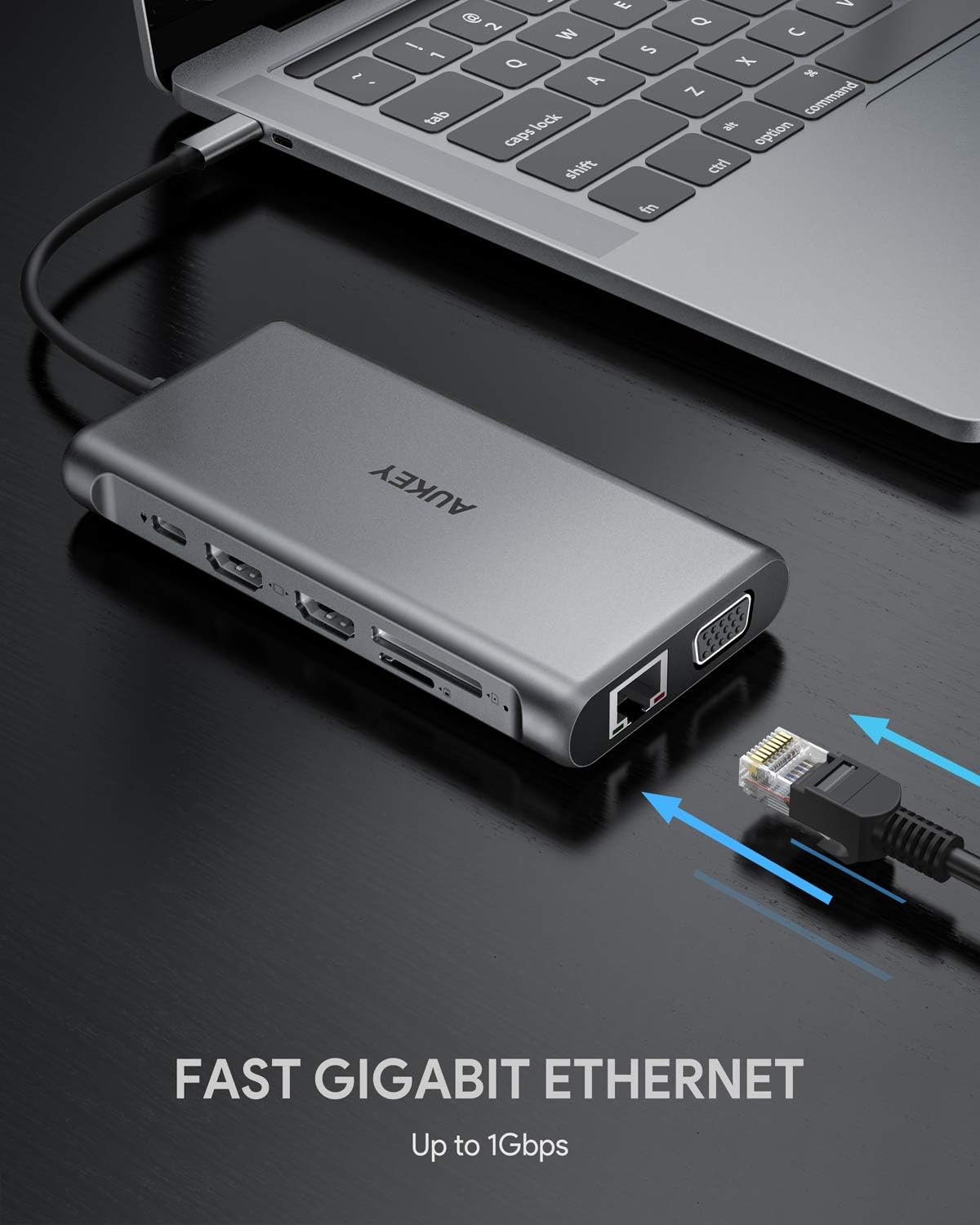
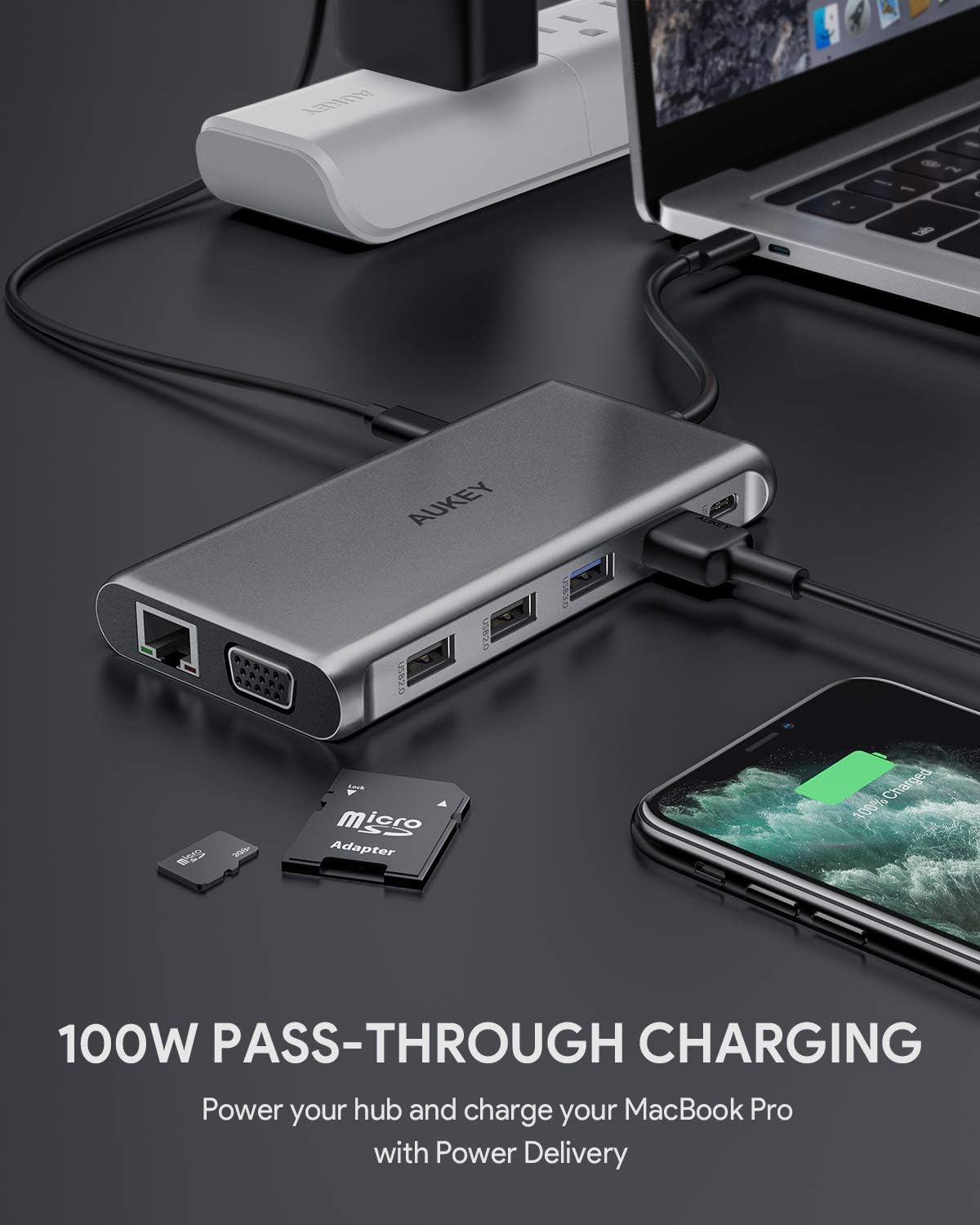
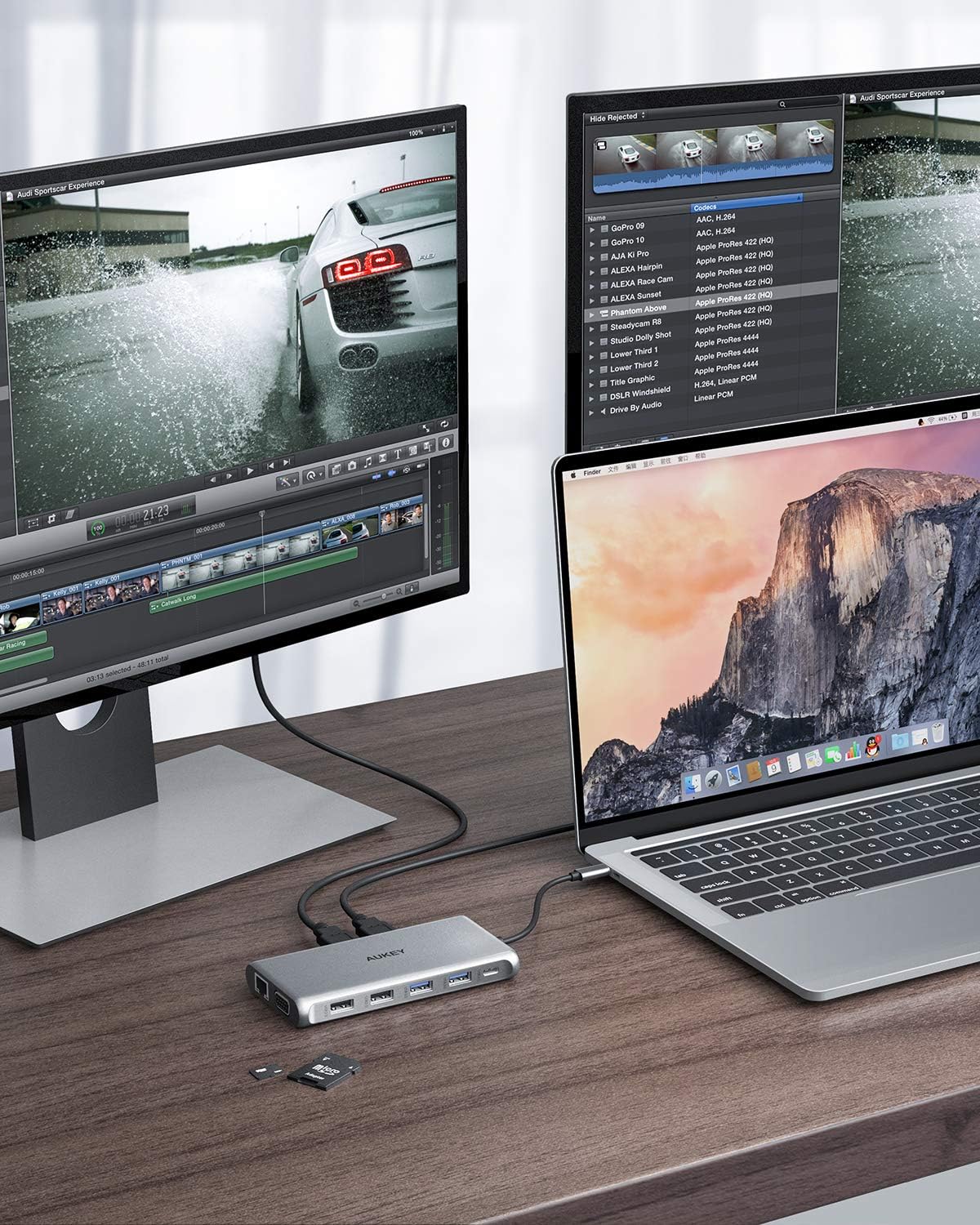
When only one HDMI port is connected, its resolution can reach 4K30Hz. In other cases, the resolution is 1080P(Windows). Note1: Please click Intel Graphics Settings for multi-display setting or press Windows+P Note2: If you want to set Display, Resolution and Refresh Rate, go to the the Gerneral Setting. When connecting three displays at the same time, the resolution can only reach up to 1920*1080/60HZ. If you need, please click "Second screen only" to turn off the laptop screen after connecting. Note1: Among the four screens (Displays and Computer), only three can display. There will be one that can not displayed (either Display or Computer) Extend the display to other screens in up to 4K@30Hz with the Mac OS computer. Resolution is 1080P@60Hz when use VGA. Note1: Setting- About This Mac>Display>Arrangement>Mirror Displays Note2: When your MAC OS needs to extend display, you need to click "Display" in Preferences, choose the Arrangement option, and then click "Cancel Mirror Displays". The USB-C port powers a compatible laptop with 100W Power Delivery. USB 3.1 Gen 1 ports enable faster data transfer speeds up to 5Gbps. Get a high-speed network connection on your USB-C device. NOTE: For 100W pass-through charging, your computer that supports 100w charging, a 100W PD charger and a 5A E-Marker USB-C to C cable are required. Please be aware that the host device will not receive exactly 100W, as the hub itself uses about 11W. Just Windows supports Triple Display. Mac OS cannot. To use the HD output port, the host USB-C port from your device must support Display Port Alt Mode For compatible models, please refer to the PDF file in the Technical Specification
Product Overview
We Recommend


